Before you share
- Team files. Share from the Teams or SharePoint site where the file lives, not from a copy in your OneDrive. Access then stays with the team when people join or leave.
- Personal accounts. Never move work files to a personal Dropbox, Google Drive or email account to share them.
Share with specific people
- Select the file or folder and choose Share.
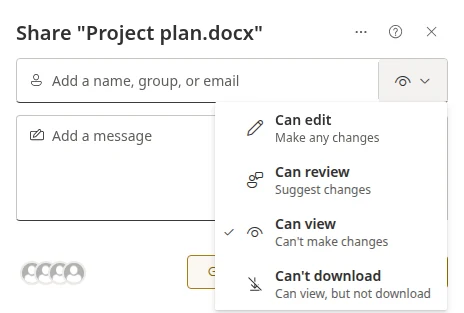
- In Add a name, group, or email, type the names or email addresses of the people who need it.
- Choose their permission from the menu next to that box: Can edit, Can review, Can view or Can't download. Choose view unless they must make changes. Choose Can't download if they should not keep a copy.
- Add a short message and choose Send.
Kinds of link, from narrowest to widest
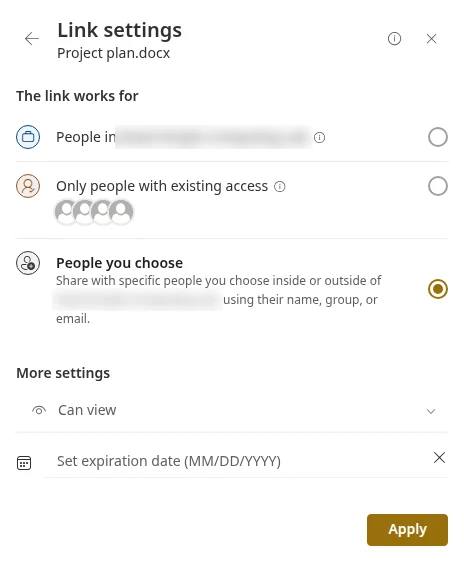
To see or change who a link works for, choose the cog next to Copy link in the Share box.
| Link | Who can open it |
|---|---|
| Only people with existing access | Only people who already have access. Use it to point colleagues to a file. |
| People you choose | Only the people you name, inside or outside your organisation. They must sign in to open it. |
| People in your organisation | Anyone with a work account at your organisation who has the link. |
| Anyone | Anyone the link reaches, with no sign-in. Avoid it. Your organisation may have switched it off, so you may not see it. |
Sharing with someone outside your organisation
- Share with People you choose, using their exact email address.
- They sign in with their own work or Microsoft account. If they do not have one, they choose Send code and type in the code emailed to them.
- If they see an access denied message, check they are using the address you shared with.
- For sensitive files, choose Set expiration date in the link settings, and remove their access when the work is finished.
- Some organisations allow sharing outside only from certain sites, or need approval first. If the Share box will not accept the address, contact us.
Stop sharing
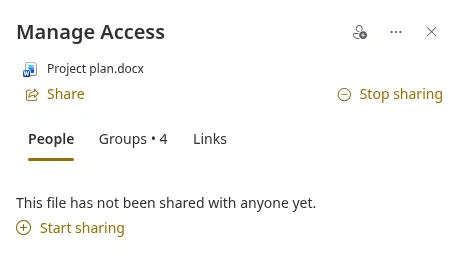
- Right-click the file or folder (or select it and choose More options, the three dots), then choose Manage access.
- Remove a person on the People tab, or a link on the Links tab. To remove all sharing at once, choose Stop sharing.
- To see what you have shared from OneDrive, open OneDrive on the web, choose Shared, then By you.
If this doesn't work
- Your organisation decides whether sharing outside and Anyone links are allowed. We advise; your organisation decides.
- Some sites, such as finance or HR, may block sharing altogether.
Still stuck?
Email [email protected] with your name, a link to the file or folder (or where it is), who you want to share with, and whether they are inside or outside your organisation.