Before you start
- On the new phone, install Microsoft Authenticator from the App Store or Google Play. Do not sign in to anything yet.
- Have a computer to hand. You set this up from a page on the computer and scan a code with the phone.
- On your first day, or if we have given you a one-time pass, have the pass ready.
Set up Authenticator
- On the computer, go to mysignins.microsoft.com/security-info and sign in with your work account. If you are asked to approve the sign-in, approve it on the old phone. If we gave you a one-time pass, use that.
- Choose Add sign-in method, then Microsoft Authenticator. Choose Next until a QR code appears.
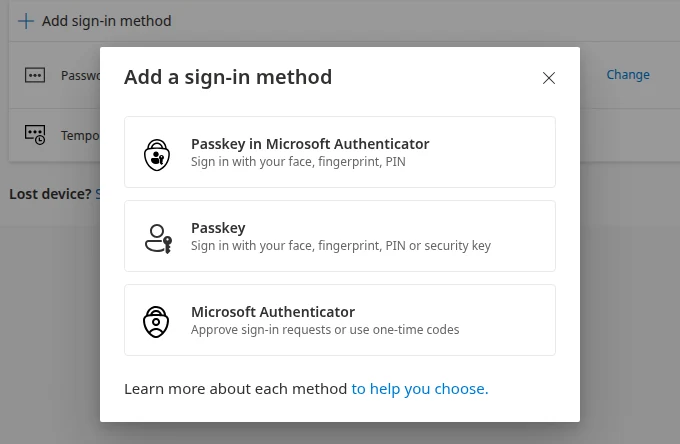
- If your phone offers to save a passkey to Google, Samsung or iCloud, cancel it. Work passkeys belong in Authenticator.
- Open the Authenticator app on the phone, not the camera. Tap +, choose Work or school account, then Scan a QR code, and scan the code on screen.
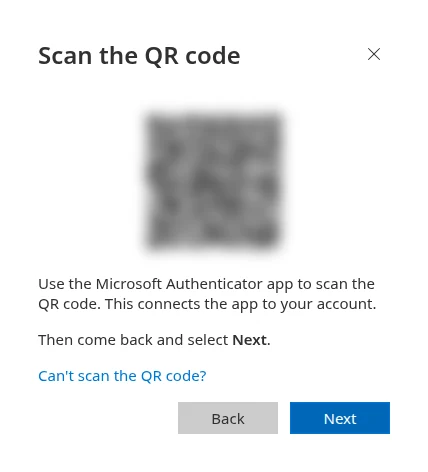
The QR code is blurred here. Yours is unique to your account. - A test notification arrives on the phone. Type the number shown on the computer into the app, and approve it.
- Back on the Security info page, check the phone is listed.
- Sign in to Outlook and Teams on the phone.
Moving from an old phone
Keep the old phone until the new one approves sign-ins. Then tell us it is working. Both phones may show the same name, so we will remove the old one from your account.
If this doesn't work
- The QR code will not scan. Choose Can't scan the QR code? and follow the steps shown.
- The old phone is lost, broken or wiped. See Lost your phone and can't sign in.
- Company Portal. If your organisation manages phones, install Company Portal first and sign in. On Android this creates a work profile, and Outlook and Teams appear on the work side of the phone.
- Company devices only. Some organisations allow work apps only on phones they have enrolled. Outlook and Teams will not work on the new phone until it is enrolled.
- Passkeys. Some organisations use a passkey in Microsoft Authenticator instead of approvals. If you had one on the old phone, or Microsoft asks you to add one, choose Add sign-in method, then Passkey in Microsoft Authenticator. Keep it in Authenticator, not in Google, Samsung or iCloud. See Go passwordless.
- Windows Hello. If you sign in to a work laptop with Windows Hello (a PIN, your face or a fingerprint), you may be able to add the new phone from that laptop without the old phone.
Still stuck?
Email [email protected] with your name, the make and model of the new phone, whether you still have the old phone, and a screenshot of any error. Do not include any codes or passwords.