What to do
- Call us on 0118 359 2222. Say whether the phone is lost, stolen, broken or wiped.
- If it was lost or stolen, we stop it approving sign-ins and sign it out of your work account. If your organisation manages phones, we can also remove work data from it.
- Once we have confirmed who you are, we give you a one-time pass over the phone. We never send it by email or text to you.
- On a computer, go to mysignins.microsoft.com/security-info, enter your work email, and type the pass where it says Enter Temporary Access Pass.
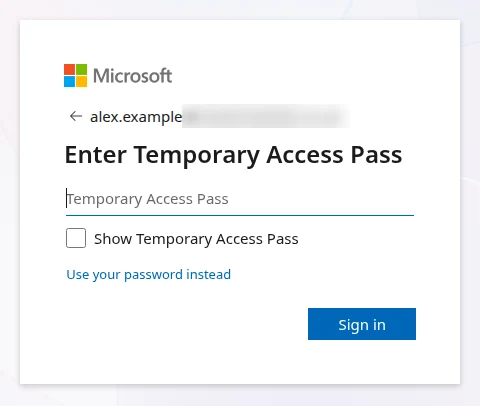
- Set up Microsoft Authenticator on your new or replacement phone. Follow Move Microsoft Authenticator to a new phone from step 2. Do it straight after you sign in: the pass works once.
If you sign in to a work laptop with Windows Hello
If your work laptop signs you in with Windows Hello (a PIN, your face or a fingerprint), you may not need a pass. On that laptop, go to Security info and add the new phone. Still call us if the old phone was lost or stolen.
If this doesn't work
- The pass is not accepted. Check you typed it exactly. Each pass works once and expires after a few hours: call us for a new one.
- You are asked for a password instead. Wait a few minutes and try again. If it still asks, call us: the pass may not have started yet, or may have expired or been used.
- Security info asks you to approve on the old phone. You are signed in with your password, not the pass. Sign out, then sign in again with the pass.
Still stuck?
Call us on 0118 359 2222 and tell us which step stopped you and what the screen said. We will never ask you for your password or a code.