Go back to an earlier version
- In OneDrive or SharePoint on the web, right-click the file and choose Version history.
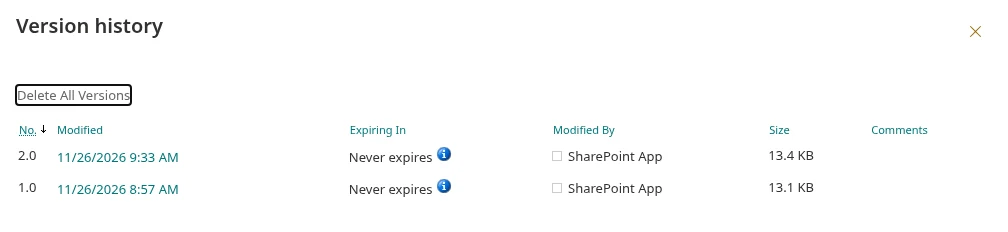
- Point at the version you want, select the arrow next to its date, and choose Restore. It becomes the current version, and nothing is lost.
- In Word, Excel or PowerPoint on your computer, you can also choose File, Info, then Version History.
Get back a deleted file
- Open the Recycle bin: in OneDrive on the web it is in the left-hand menu; on a SharePoint site it is in the left-hand menu or under Settings, then Site contents.
- Select the file and choose Restore. It goes back to where it was.
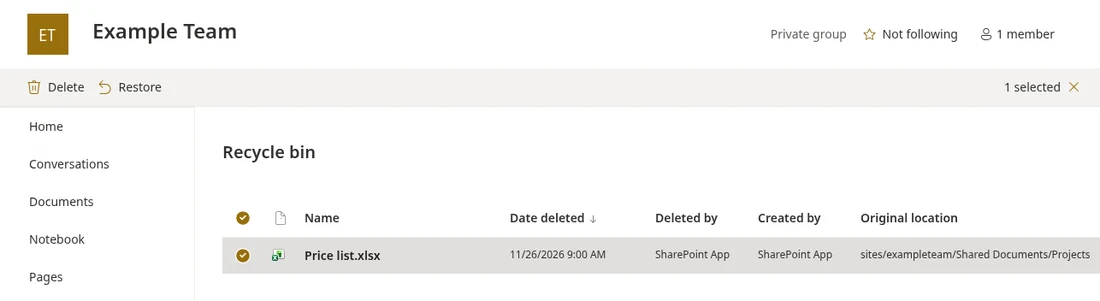
Deleted files can usually be restored for 93 days from when they were first deleted.
If this doesn't work
- The file is not in the recycle bin. It may be in the site's second-stage recycle bin, which only administrators can see. Contact us quickly.
- A whole folder, or many files, have changed or vanished. Contact us straight away and do not try to fix it file by file.
Still stuck?
Email [email protected] with the file name, where it was (a link or the site and folder), and roughly when it changed or was deleted.