Share your calendar in new Outlook or Outlook on the web
- Open your calendar and choose Share.
- In Enter an email address or contact name, type the person's name.
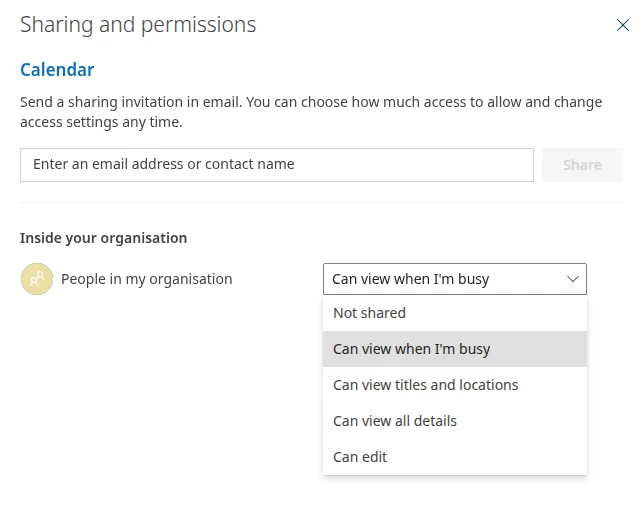
- Choose how much they see: Can view when I'm busy, Can view titles and locations, Can view all details or Can edit. For one named person you can also choose Delegate, which lets them answer meeting invitations for you.
- Choose Share. They get an email to accept.
The same box sets what everyone in your organisation sees, under People in my organisation.
Classic Outlook (Windows)
Open your calendar, choose Share Calendar on the Home tab, add the person, choose the permission and send.
Access to someone else's mailbox
For another person's email, such as while they are away, email us. We need a written OK from that person or a named manager. A team mailbox such as accounts@ works differently: see How to add a shared mailbox in Outlook.
If this doesn't work
- The person cannot be found. Type their full email address. People outside your organisation may only be allowed to see when you are busy.
- They cannot see your calendar. Ask them to accept the sharing email, then restart Outlook.
Still stuck?
Email [email protected] with your name, who needs access and what they need to see or do.