New Outlook and Outlook on the web
- In new Outlook, choose View, View settings, Accounts, then Automatic Replies. On the web, choose Settings (the cog), Account, then Automatic replies.
- Turn on the Automatic replies switch.
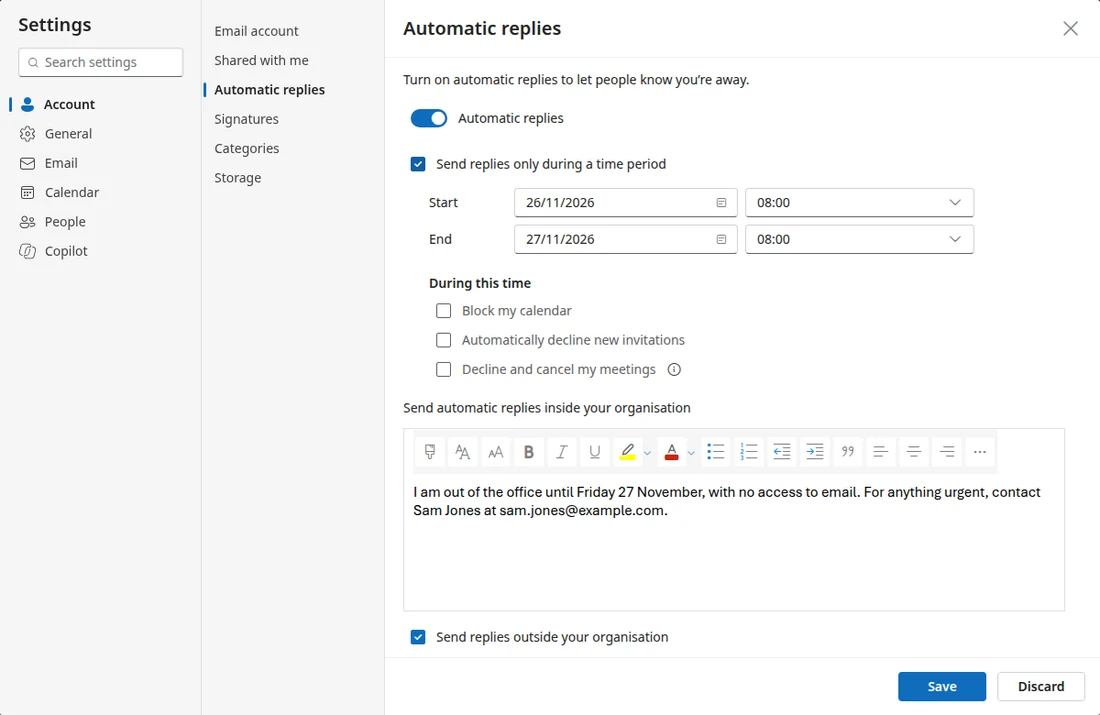
- Tick Send replies only during a time period and set the start and end, so it switches itself off.
- Write your reply. To reply to people outside your organisation too, tick Send replies outside your organisation and write that reply.
- Choose Save.
Classic Outlook (Windows)
- Choose File, then Automatic Replies.
- Choose Send automatic replies.
- Tick Only send during this time range and set the start and end.
- Write your reply on the Inside My Organization tab. For people outside, use the Outside My Organization tab.
- Choose OK.
Outlook for Mac
- From the Tools menu, choose Automatic Replies, then your work account.
- Turn on Send Automatic Replies. Tick Send replies during a specific time period and set the dates.
- Write your reply for inside your organisation, and one for outside if you want it, then close the window to save.
Outlook on your phone
- Open the Outlook app, tap your profile picture, then Settings (the cog).
- Tap your work account, then Automatic Replies. Turn them on, set the dates and reply, then tap Save.
What to write
Keep it short: when you are back, and who to contact for anything urgent. For example:
I am out of the office until Friday 27 November, with no access to email. For anything urgent, contact Sam Jones at [email protected].
For people outside your organisation, leave out your mobile number and where you are going.
If this doesn't work
- There is no Automatic replies option. Your email may be run by another provider, such as Google Workspace. Contact us.
- People outside did not get the reply. Check you turned on replies outside your organisation.
- A shared mailbox, or a colleague who is off sick or has left. We can set an automatic reply on another mailbox with their manager's OK. Email us.
Still stuck?
Email [email protected] with your name, which Outlook you use, and the dates and reply you want.