Classic Outlook (Windows)
- Choose File, then Options, then Mail, then Signatures.
- Choose New, give it a name, and type or paste your signature.
- To add a logo, select the picture icon and choose the image file. Keep it small, under about 100 KB.
- Under Choose default signature, pick it for New messages and Replies/forwards.
- Choose OK.
New Outlook and Outlook on the web
- Choose Settings (the cog), then Account, then Signatures. In new Outlook it may say Accounts.
- Choose Add signature, give it a name, and add your text and logo.
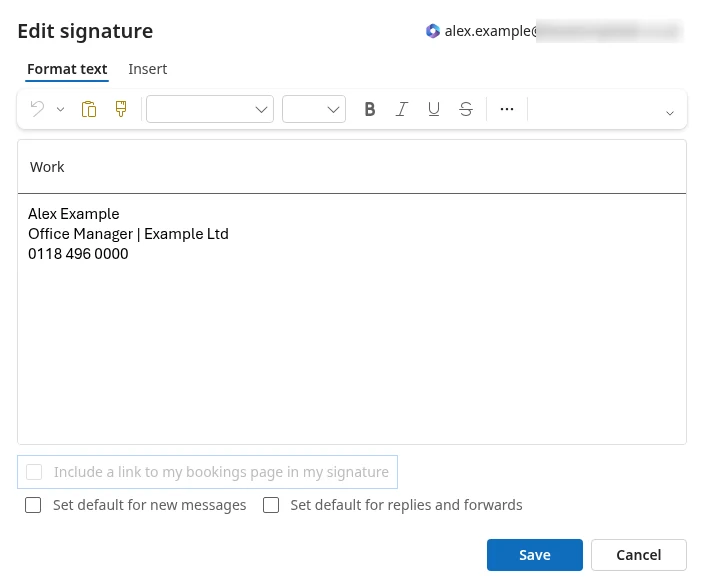
- At the bottom, tick Set default for new messages and Set default for replies and forwards, then choose Save.
Outlook on your phone
- Open the Outlook app, tap your profile picture, then Settings (the cog).
- Under Mail, tap Signature and type a short text signature. The phone app does not use your desktop signature.
Tips
- To match the house style, copy the signature from a colleague's email and change the details.
- Send a test email to yourself before using it with clients.
If this doesn't work
- The signature does not appear. A signature saved in one version of Outlook may not appear in another. Set it in each one you use.
- Signatures added for you. Some organisations use a service that adds a standard signature to every email after it is sent. You will not see it while you type. Changes, such as a new job title or a seasonal banner, are made centrally: ask your manager or contact us.
- Shared mailboxes. A shared mailbox can have its own signature in Outlook on the web. Ask us if you need one.
Still stuck?
Email [email protected] with your name, which Outlook you use, the signature text you want, and any logo attached as an image file.