A shared mailbox, such as info@, accounts@ or finance@, opens with your own work sign-in. It has no password of its own, so you never need one.
Who it's for: Staff who need to read or send from a shared mailbox, and managers asking for access for them.
Last checked 26 November 2026
Asking for access
Email us the name of the mailbox and the people who need it.
Say whether they need to send as the mailbox, so emails show the mailbox's address in From, or only read it and reply in their own name.
For restricted mailboxes, such as finance, payroll, HR or another person's mailbox, we need a written OK from the mailbox owner or a named manager. Copy them in to save time.
Finding it in Outlook
After we confirm access, wait up to an hour, then close and reopen Outlook. In classic Outlook the mailbox usually appears in your folder list on its own.
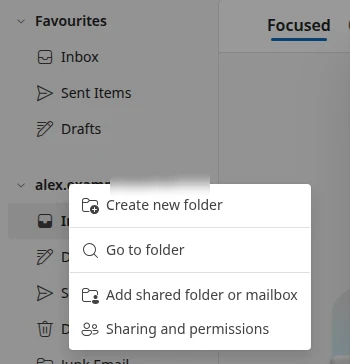
New Outlook and Outlook on the web: right-click your account name in the folder list and choose Add shared folder or mailbox.
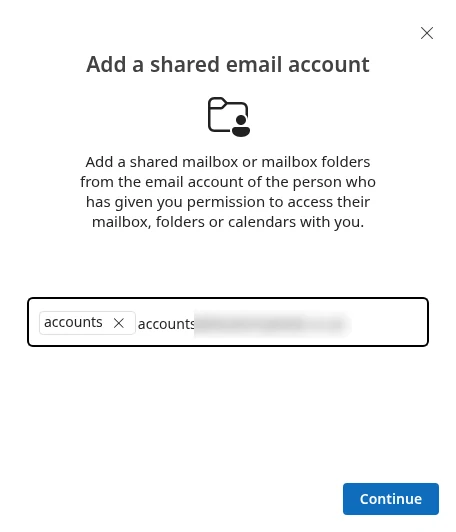
Type the mailbox address, choose it from the list, then choose Continue. It then appears under Shared with me.
Outlook for Mac: a Mac does not add shared mailboxes on its own. Choose Tools, Accounts, select your own account, then Delegation and Sharing, the Shared With Me tab, and +. Or choose File, Open, then Shared Mailbox.
On your phone: in the Outlook app, open the menu, tap Add Account, then Add a Shared Mailbox.
Sending from the shared mailbox
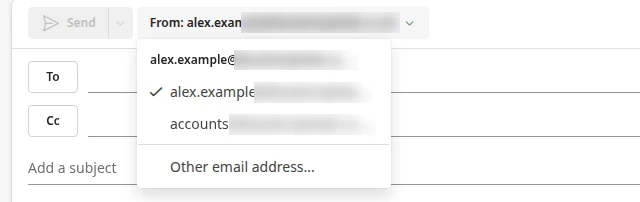
In a new email, show the From field. In classic Outlook, choose Options, then From. In new Outlook, choose Options, then Show From. On the web, choose More actions (the three dots), then Show From.
Select From and choose the shared mailbox. If it is not listed, choose Other email address and type it in. You can send from it only if we have given you Send As as well as access.
Sent emails may land in your own Sent Items rather than the shared mailbox's. Tell us if you need them in the shared mailbox.
If this doesn't work
Asked for a mailbox password. You do not need one. Sign in with your own email address and password. If the shared mailbox then disappears, contact us and we will check your access.
It has not appeared after an hour. Close and reopen Outlook, then add it by hand as above. If it still is not there, contact us.
Some organisations restrict who can open a mailbox, or need a manager's sign-off for every new person. We follow your organisation's rules.
A website or app account registered to a shared mailbox, such as a software licence, may send its sign-in codes there. Ask your manager who looks after that account.
Still stuck?
Email [email protected] with your name, the shared mailbox address, what you need (read, reply or send as) and who approved it.
Hello, I am Ainsley, the AI assistant here at Dead Simple Computing. Ask me anything about managed IT, cyber security, software and AI, or governance and audit. I can also put you in touch with a person.
Replies are AI generated and can be wrong. Your messages are sent to a third-party AI service to produce them. This chat is recorded and emailed to our team, and a member of the team may join it. Do not type anything confidential. See our privacy notice.
Optional cookies help us understand visits and which adverts lead to enquiries. Choose what works for you. Essential cookies keep the website and forms working. Cookie details.
Turning off a choice reloads this page. Save any unfinished form details first.