The three ways
- A passkey in Microsoft Authenticator. Your phone signs you in with its face, fingerprint or PIN. On a computer, you scan a QR code with the phone. A passkey cannot be used on a fake page.
- Phone sign-in with Authenticator. Type your email, then match the number on your phone. No password.
- Windows Hello. On a work laptop, your PIN, face or fingerprint signs you in to Windows and Microsoft 365.
Add a passkey in Microsoft Authenticator
- Check the phone has iOS 17 or Android 14, or later, and the latest Microsoft Authenticator with your work account in it. If not, start with Move Microsoft Authenticator to a new phone.
- On the phone, let Authenticator save passkeys. On an iPhone with iOS 18 or later: Settings, General, AutoFill & Passwords, turn on AutoFill Passwords and Passkeys, then under AutoFill From choose Authenticator. On iOS 17: Settings, Passwords, Password Options. On Android: Settings, Passwords & accounts, Additional providers, then turn on Authenticator. The names vary by phone: search Settings for "Passkey".
- Open Microsoft Authenticator, tap your work account, then Create a passkey, and follow the steps. You can also start from Security info on a computer: Add sign-in method, then Passkey in Microsoft Authenticator.
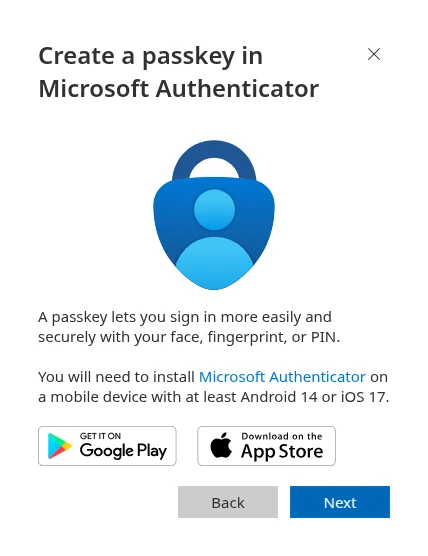
- If the phone asks where to save the passkey, choose Authenticator. Do not save it to Google, Samsung or iCloud.
To sign in on a computer, type your email and choose Other ways to sign in (or Sign-in options), then Face, fingerprint, PIN or security key. On Windows, choose iPhone, iPad, or Android device. Scan the QR code with the phone: on an iPhone, use the Camera app, not Authenticator. Bluetooth and the internet need to be on, on both.
Turn on phone sign-in
- Open Microsoft Authenticator and tap your work account.
- Tap Set up Passwordless sign-in requests and follow the steps. The app registers your phone as part of this.
- Next time you sign in, type your email and choose Next. If you are asked for a password, choose Other ways to sign in, then Approve a request on my Microsoft Authenticator app. Type the number shown into the app and approve.
Windows Hello on a work laptop
A work laptop usually asks you to set up a Windows Hello PIN the first time you sign in. To add your face or a fingerprint later, go to Settings, Accounts, then Sign-in options.
If this doesn't work
- The option is not offered. Your organisation may not have switched it on yet.
- Microsoft asks you to "Sign in faster with your face, fingerprint, or PIN". That is passkey set-up. Choose Next, and save the passkey in Authenticator. You can choose Skip for now and do it later.
- You signed in with a one-time pass. Set up the passkey or phone sign-in within 10 minutes of signing in.
- The phone offers Google, Samsung or iCloud. Cancel, and turn on Authenticator as described in step 2.
- New phone. A passkey stays on the phone it was made on. Add a new one on the new phone, and tell us so we can remove the old one.
- The QR code does not connect. Turn on Bluetooth on the phone and the computer, and keep them close together.
Still stuck?
Email [email protected] with your name, the make and model of your phone, which way you were setting up, and a screenshot of any error. Never include a password or a code.