Asking for access
- Open the folder link if you have it. If you see Request access, use it: the folder's owner gets the request and can approve it straight away.
- If you only see a message that you do not have permission, or nobody responds, email us with the details listed under Still stuck, below.
- For sensitive areas, such as finance, HR, payroll or a leaver's files, we need a written OK from the folder owner or a named manager. Copy them in.
- Where we can, we give access by team or group, so new starters get the right folders automatically.
Making a folder private to a few people
- Email us the folder (a link or its location) and the names of the people who should keep access.
- Tell us whether each of them needs to view or edit.
- Once it is done, only those people and your site administrators can open it. Everyone else loses access, so check the list carefully.
Opening it on your computer
- In SharePoint or Teams, right-click the folder you need, choose Add shortcut to OneDrive, then My files. It then appears in OneDrive in File Explorer.
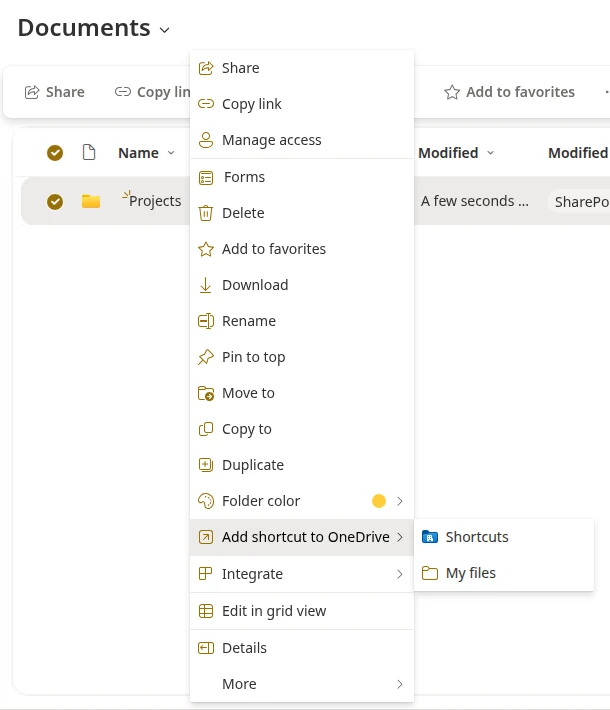
- Add a shortcut to the folder you need, not the whole library. Very large libraries are slow to sync.
- Files show a cloud icon until you open them. That is normal, and saves space on your computer.
A file or folder has gone missing
- Check the site's Recycle bin. In SharePoint it is in the left-hand menu, or under Settings, then Site contents. In Teams, open the channel's files and choose Open in SharePoint first. Select the item and choose Restore.
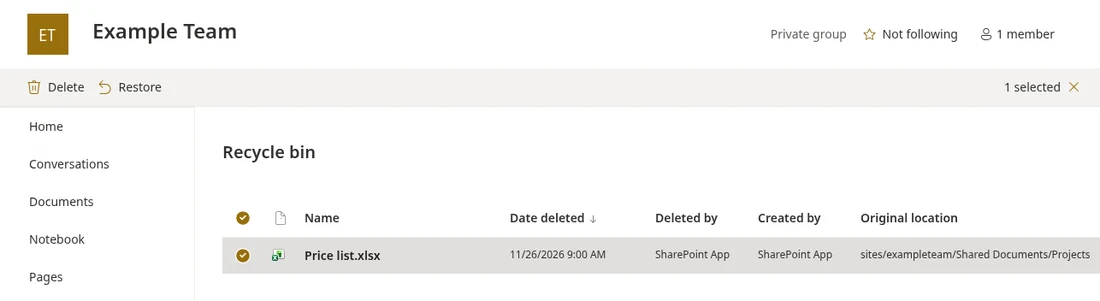
- If it is not there, contact us quickly. Deleted files can usually be recovered for 93 days from when they were first deleted, and the sooner we look, the more we can recover.
If this doesn't work
- Some organisations have a folder or site owner who approves all access. We will copy them in.
- If your files also sync to an office server or NAS, changes may take a while to appear in both places. Tell us if that applies.
- For people outside your organisation, see Sharing a file or folder safely.
Still stuck?
Email [email protected] with your name, a link to the folder (or the site and folder name), who needs access, whether they need to view or edit, and who approved it.