Do now: the first 15 minutes
- Tell IT straight away, even if it might turn up. Ask the person when they last had it, whether it was locked, and whether a password was written down with it.
- Sign the person out everywhere. In the Microsoft Entra admin centre, open the user and choose Revoke sessions. Some apps can keep working for up to an hour. If the device was unlocked, or the password was kept with it, reset the password too.
- If it was stolen or held unencrypted data, go straight to the wipe in the next section. Send it before you disable or delete anything.
- For a work phone, ask the mobile network to bar the SIM, so the thief cannot receive calls or text codes on the number.
In the first hour: lock, locate or wipe
- Open the device in Intune. In the Microsoft Intune admin centre, go to Devices, All devices, and open it. The actions along the top are what you can do to it remotely. Each one runs the next time the device connects to the internet.
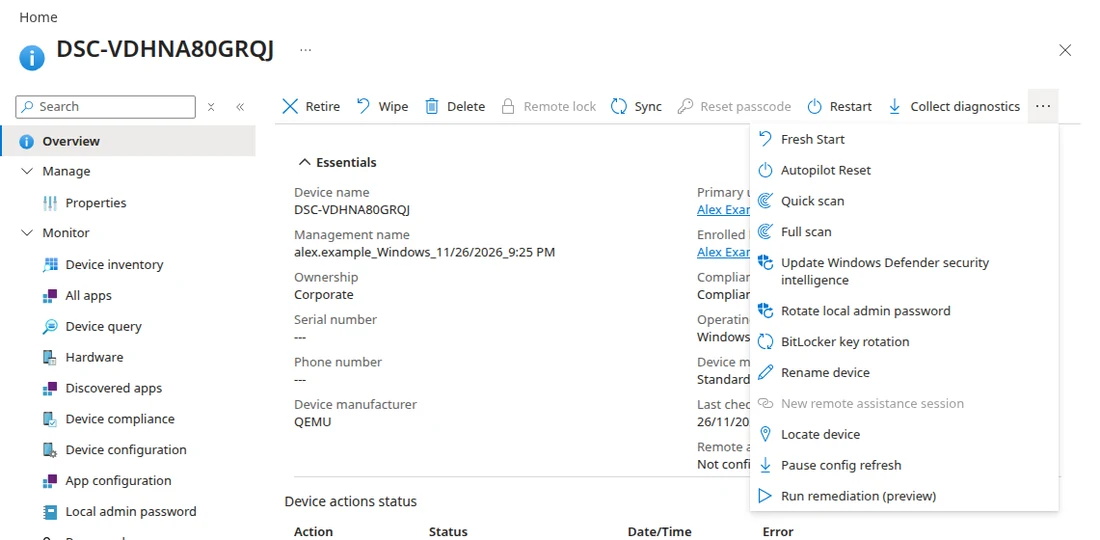
Remote lock is greyed out because it is not available for Windows devices. For a lost company laptop, the choice is between Locate device and Wipe. - Choose the action.
- Locate device shows where it is, but only if you set it up beforehand: on Windows, a policy that allows location access; on an iPhone or iPad, only when it is supervised and in Lost Mode. Leave recovering a stolen device to the police.
- Wipe resets it to factory settings and removes everything. Use it if the device was stolen, was unlocked, or held data that was not encrypted. Do not tick Wipe device, but keep enrollment state and associated user account, which keeps the user's data. After a wipe you can no longer locate it.
- Retire removes only company data, apps and settings, and leaves personal content alone. Use it for a personal phone or tablet that was enrolled, never for a lost company laptop: on an Entra-joined laptop, Retire suspends BitLocker.
- Remote lock locks iPhones, iPads, Macs and company-owned Android devices, not Windows. Lost Mode, on a supervised iPhone or iPad, also shows your message and phone number on the lock screen.
- A personal phone that is not enrolled but has Outlook or Teams on it: if you use app protection policies, go to Apps, App selective wipe in Intune and create a wipe request for that user and device. It removes work data from the apps only, and runs only when the app is next opened, so revoking the person's sessions is what actually cuts access. See app protection policies.
- Then disable it in Entra. Once the wipe has been sent, or if the device is not in Intune, go to Devices in Entra, open it and choose Disable. That stops the device signing in to Microsoft Entra and revokes its tokens, so it can no longer be used to sign in. Microsoft advises wiping or retiring in Intune first.
- Check the encryption. In Intune, check the Encrypted field in the device's details, or the device encryption status report, to confirm BitLocker was on. If it was, and the laptop was shut down or hibernating, the disk cannot be read without the key. A laptop that was only asleep and locked is protected by its Windows sign-in. Do not give the BitLocker recovery key to anyone who phones asking for it: see BitLocker recovery keys.
Today: report it and decide about the data
- If it was stolen, report it to the police online or on 101 and get a crime reference number. Your insurer will want it.
- Work out what was on it. Files saved to the device itself, not just OneDrive, and anything the person could open while it was unlocked.
- Decide whether the ICO needs to know. A lost laptop that was encrypted and shut down, with the key safe, is unlikely to put anyone at risk. An unencrypted laptop or an unlocked phone holding personal data may well be reportable within 72 hours. See our data breach playbook.
- Record it either way. UK GDPR requires you to keep a record of every personal data breach, including ones you do not report.
Who to tell
| Who | When | How |
|---|---|---|
| Your bank | Straight away, if money has gone or a payment is pending | The fraud number for your business account, from your card, statement or online banking. 159 also puts you through to your bank, but it is meant for personal accounts |
| Report Fraud (England, Wales, Northern Ireland) | Fraud or cyber crime. 24/7 line for organisations under attack | reportfraud.police.uk or 0300 123 2040. It replaced Action Fraud in January 2026 |
| Police Scotland | Fraud or cyber crime in Scotland | Call 101 |
| The ICO | Within 72 hours of becoming aware of a personal data breach that is likely to put people at risk. You can report in stages | ico.org.uk/report-a-breach or 0303 123 1113. See our data breach playbook |
| The NCSC | A significant cyber incident affecting your organisation | report.ncsc.gov.uk. Not sure where to report? gov.uk/report-cyber |
| Your insurer | As soon as you can, if you have cyber insurance. Many policies have a notification deadline and an incident line | The number in your policy |
Do not
- Wait a day to see if it turns up before telling IT. Signing the person out costs nothing.
- Wipe straight away if there is a fair chance it is just lost and it was encrypted. You lose the ability to locate it.
- Retire or delete a lost company laptop instead of wiping it. In Intune, Delete sends a Retire, which suspends BitLocker on an Entra-joined laptop, and deleting it in Entra also removes its recovery keys.
- Read out a BitLocker recovery key to a caller you have not checked.
Afterwards: make a lost device boring
- Encrypt every laptop with BitLocker managed by Intune, and keep the recovery keys in Entra: BitLocker recovery keys.
- Enrol every work device in Intune so you can wipe it, and use app protection for personal phones.
- Keep files in OneDrive and SharePoint, not on the device, so a lost laptop loses no work.
- Require a compliant device for sign-in with Conditional Access: a Conditional Access baseline.