

The short version
- In Intune, go to Apps, Protection, Create, iOS/iPadOS. Repeat for Android.
- Target the Core Microsoft Apps.
- Data protection: no backups to iCloud, work data only moves between protected apps, and copies can be saved only to OneDrive and SharePoint.
- Access: a six-digit PIN, no simple PINs, Face ID or fingerprint allowed.
- Conditional launch: block jailbroken phones and old versions of iOS.
- Assign it to a group of users, not devices.
- Add a Conditional Access policy that requires an app protection policy on iOS and Android, so the phone's own mail app cannot be used instead.
App protection is part of Microsoft Intune Plan 1, which is included in Microsoft 365 Business Premium, E3 and E5.
Step 1: create the policy
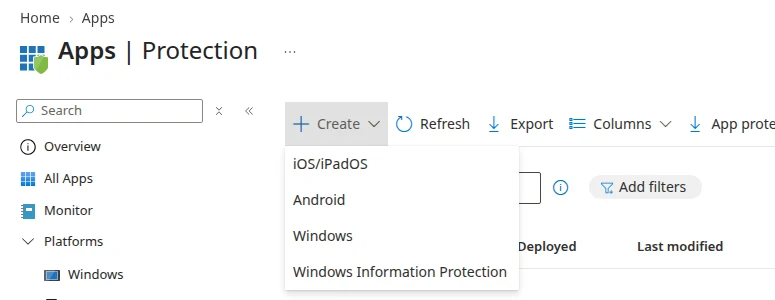
- In the Intune admin centre, go to Apps, Protection. Choose Create, then iOS/iPadOS.
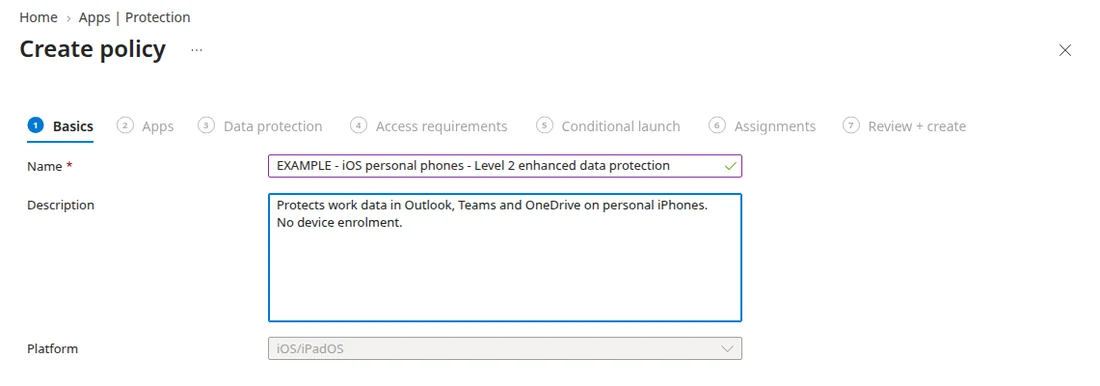
- Give it a name that says who it is for and what level it is.
Step 2: apps
Under Target policy to, choose Core Microsoft Apps. That covers 11 apps: Edge, Excel, Microsoft 365 (Office), OneDrive, OneNote, Outlook, PowerPoint, SharePoint, Teams, To Do and Word. All Microsoft Apps adds others such as Planner and Power BI.
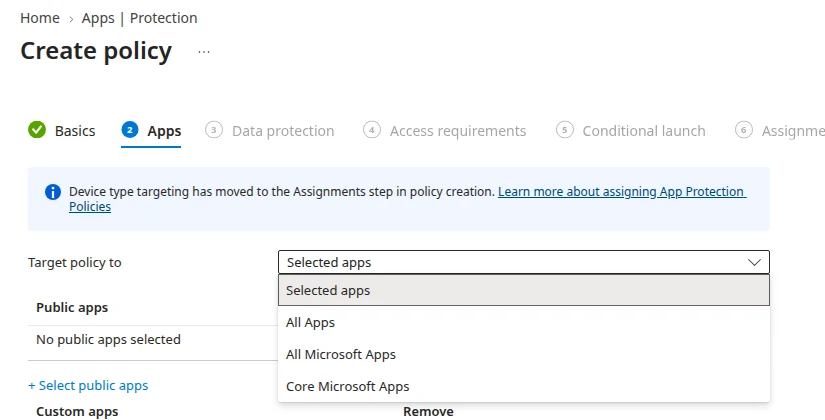
Older guides tell you to choose the device type on this page. That has moved: device targeting is now done with a filter on the Assignments step.
Step 3: data protection
This is the heart of the policy. We start from Microsoft's level 2, "enhanced data protection", which suits most staff, and note below where we differ.
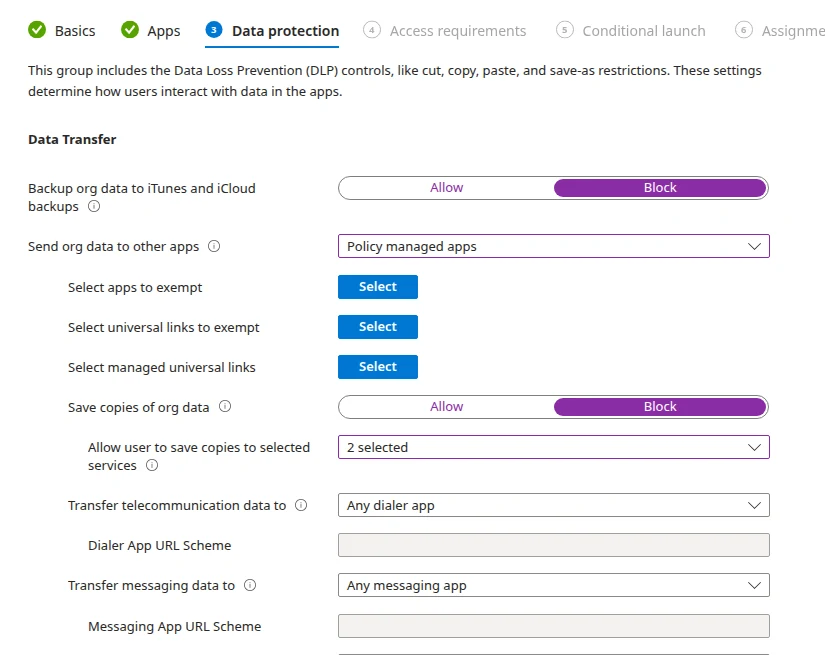
- Backup org data to iTunes and iCloud backups: Block.
- Send org data to other apps: Policy managed apps, so an attachment from Outlook can open in Word, but not in a personal app.
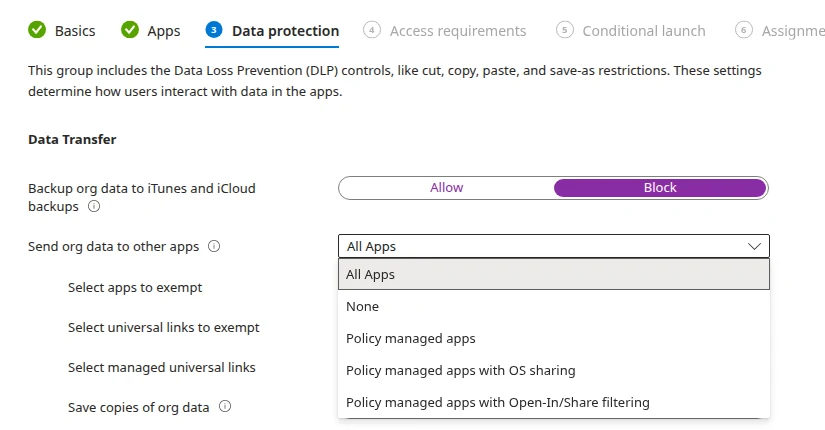
- Save copies of org data: Block, and under Allow user to save copies to selected services, tick OneDrive for Business and SharePoint. Microsoft's level 2 also allows Photo Library; we leave it out.
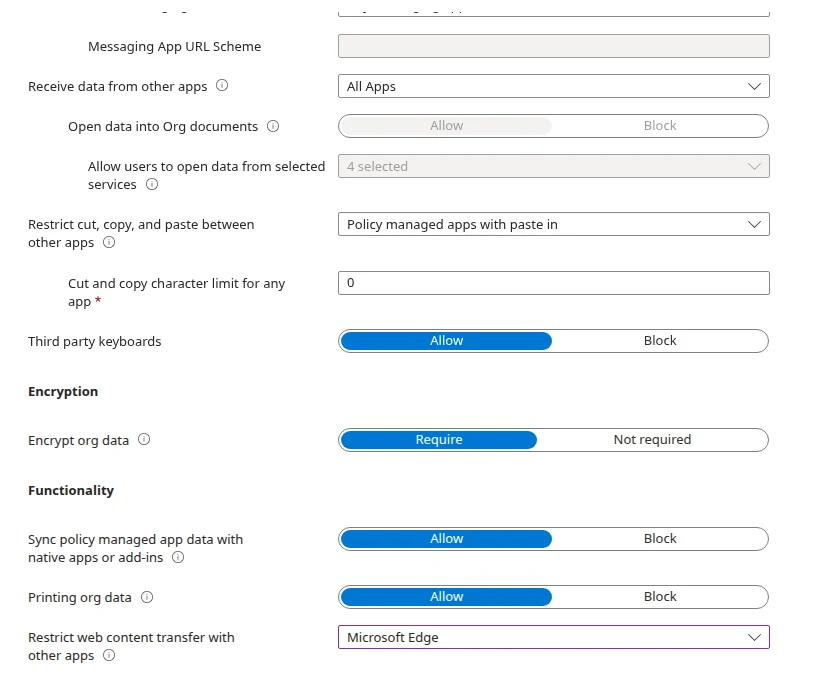
- Restrict cut, copy, and paste between other apps: Policy managed apps with paste in, so people can paste into work apps but not out of them. Encrypt org data: Require. Restrict web content transfer with other apps: Microsoft Edge, so work links open in a protected browser.
Step 4: access requirements
Set PIN for access to Require, Simple PIN to Block, and the minimum length to 6. That is stricter than Microsoft's level 2, which allows four digits; six digits with simple PINs blocked is its level 3. Face ID and Touch ID can stand in for the PIN, and the PIN is asked for again after 30 minutes of inactivity.
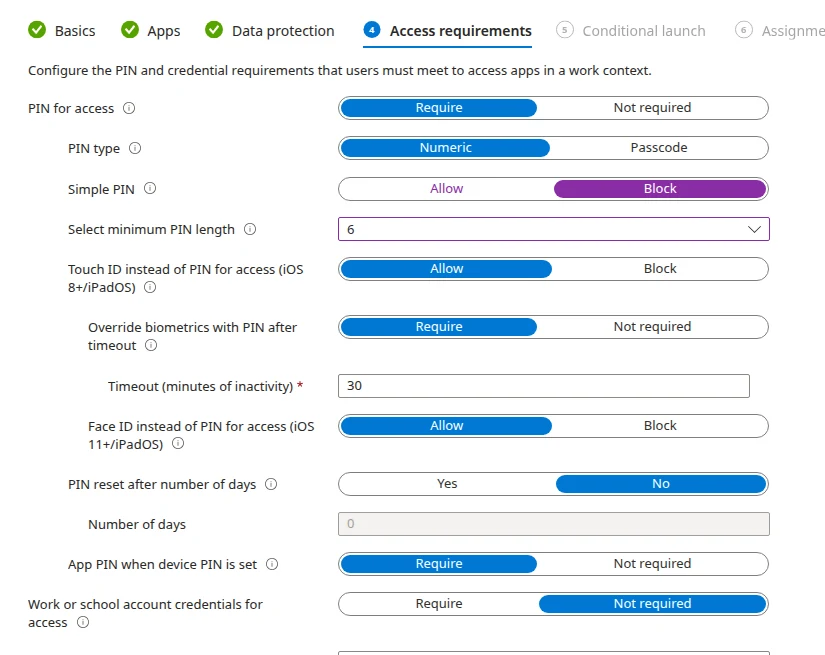
This PIN is for the work apps only, on top of the phone's own lock. People set it the first time they open Outlook after the policy arrives.
Step 5: conditional launch
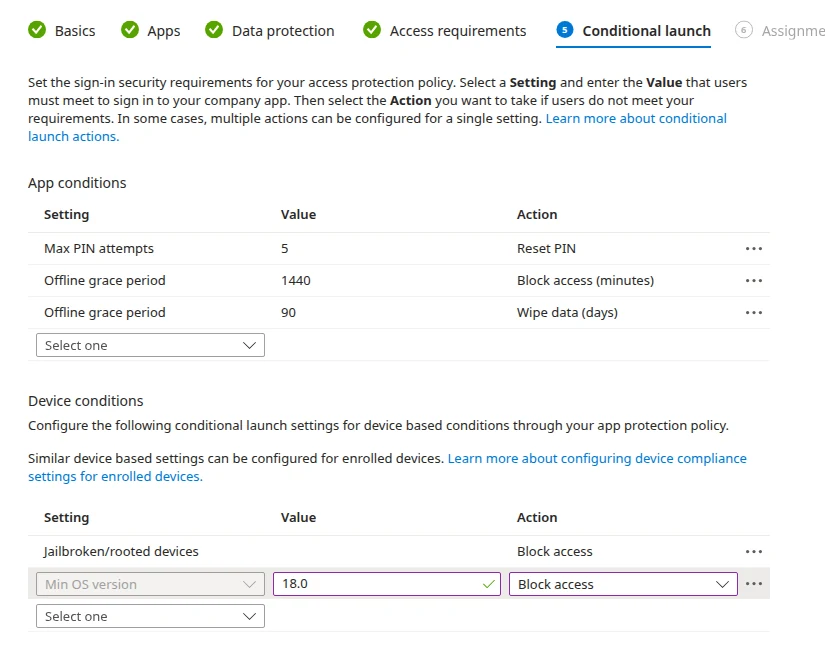
Conditional launch decides what happens when something is wrong. The defaults reset the PIN after five wrong tries, block access after 1,440 minutes (a day) offline, and wipe the work data after 90 days offline. Jailbroken or rooted phones are blocked. We add a minimum version of iOS, set a version or two behind the current one, so phones that have stopped getting security updates are blocked.
Microsoft's level 2 goes further on two points: it wipes work data after 30 days offline rather than 90, and adds Disabled account set to Block access, so work data stops opening once someone's account is disabled. Both are worth adding.
Step 6: assign it to users
Add a group of users. App protection follows the person and the app, not the phone, so device groups do not work here. To apply it only to personal phones, add an assignment filter on the device management type, set to Unmanaged.
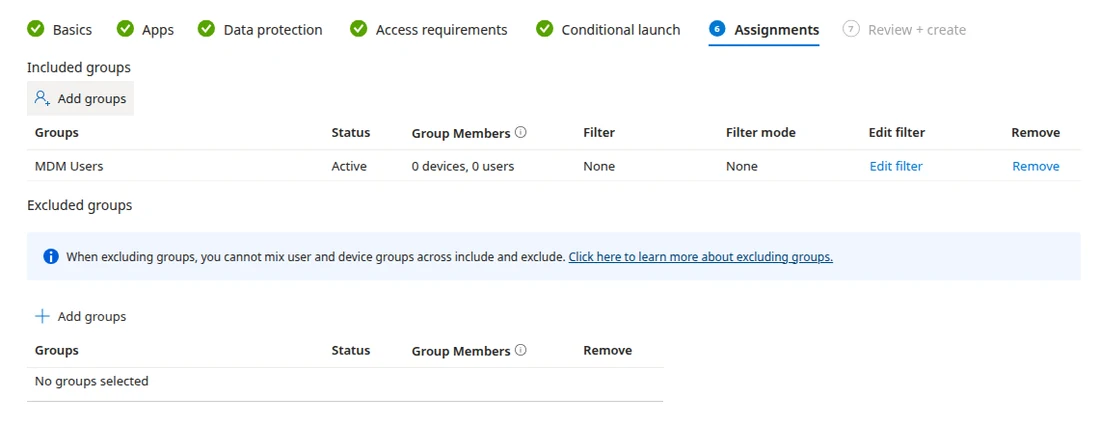
Check the summary on Review + create, then choose Create.
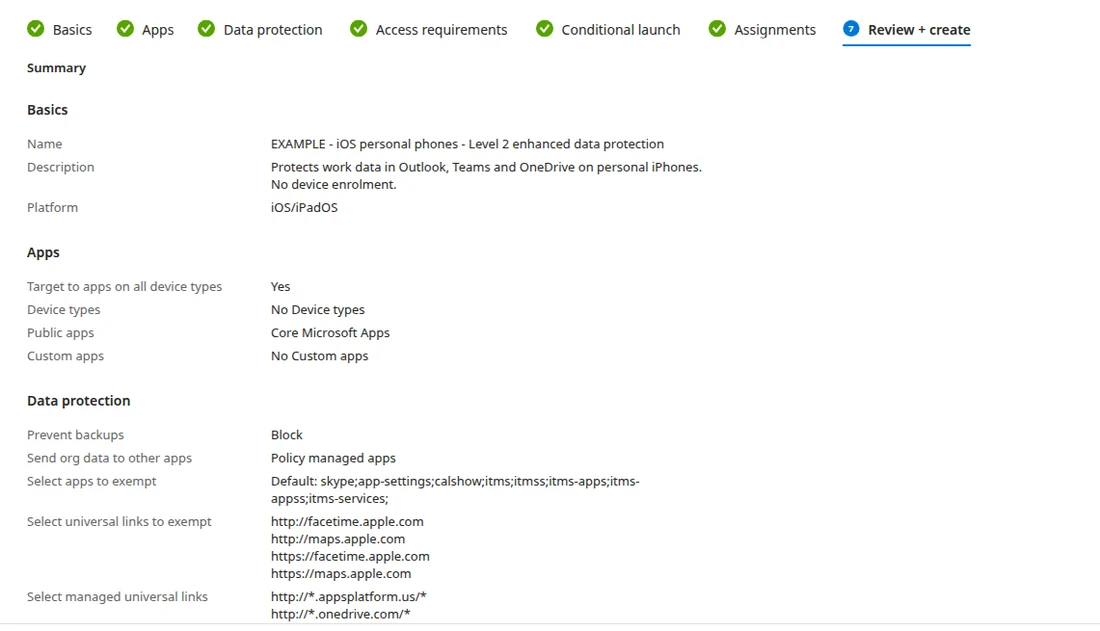
Step 7: require it with Conditional Access
On its own, the policy protects data in the Microsoft apps but does not stop someone adding their work account to the iPhone's Mail app. A Conditional Access policy closes that gap:
- In Entra, create a Conditional Access policy for your users.
- Under Conditions, Device platforms, include iOS and Android.
- Under Grant, choose Grant access and tick Require app protection policy.
- Start in Report-only, check the sign-in logs, then switch it on.
Require approved client app, which older guides use, is greyed out in the current admin centre. Use Require app protection policy instead.
On iPhone, people need Microsoft Authenticator installed for this to work. On Android, they need the Company Portal app installed, but they do not have to enrol the phone.
Check it worked
- On a test phone, open Outlook. It should ask you to set the app PIN, and a copied paragraph should not paste into Notes.
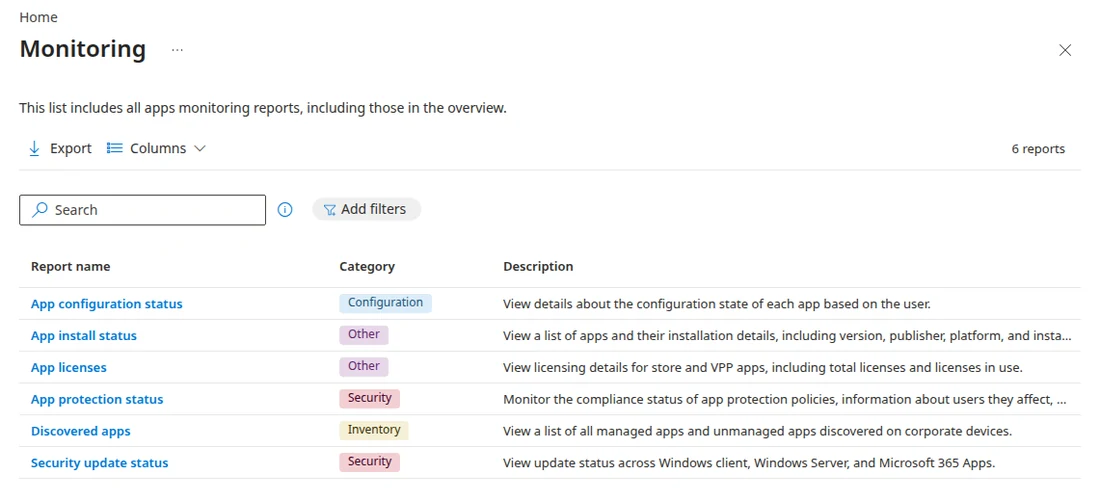
- In Intune, Apps, Monitor, App protection status shows which users and apps have checked in with the policy.
Common mistakes
- No Conditional Access. Without it, the policy is easy to walk round with the phone's own mail app.
- iPhone only. Android needs its own policy with the same settings.
- Blocking all copy and paste. Paste in to work apps is what people need most. Blocking it causes support calls and workarounds.
- Enrolled company phones in the same policy. They are better managed through enrolment and compliance policies. Use an assignment filter to keep the two apart.
Common questions
Can the company see my photos or messages?
No. App protection covers the work account inside the Microsoft apps. It cannot see or wipe personal apps, photos, messages or the phone's settings.
What happens when someone leaves?
Disable their account, then use Apps, App selective wipe in Intune to remove the work data from their phone. Their personal data stays where it is.
Does the phone need to be enrolled in Intune?
No. That is the point of app protection. On Android the Company Portal app must be installed, because it carries the protection, but the person does not have to enrol the phone.