

The short version
- Keep two break-glass accounts excluded from every policy.
- Create two country lists under Named locations: the countries you work in, and a short list of high-risk countries.
- Block every location except the countries you work in, with a travel group for people abroad.
- Block the high-risk countries for everyone, travellers included.
- Make admins sign in again at least once a day.
- Try token protection for Windows desktop apps in report-only mode.
- Test each policy with What If and the sign-in logs before switching it on.
Conditional Access needs Microsoft Entra ID P1, which is included in Microsoft 365 Business Premium, E3 and E5.
How we set it up
Our baseline, as it runs in our lab tenant, uses two location policies rather than one:
| Policy | Who | Locations | Result |
|---|---|---|---|
| Block access from unsupported locations | All users, except break-glass and the travel group | Everywhere except Allowed Countries (the UK) | Block |
| Block high-risk locations | All users, except break-glass | Blocked Countries, 13 countries | Block |
The first stops sign-ins from anywhere your staff do not work. The travel group lets someone work from a holiday or a conference. The second policy means even a traveller cannot sign in from the countries on the high-risk list, so adding someone to the travel group never opens those up.
Step 1: named locations
- In the Microsoft Entra admin centre, go to Entra ID, Conditional Access, Named locations.
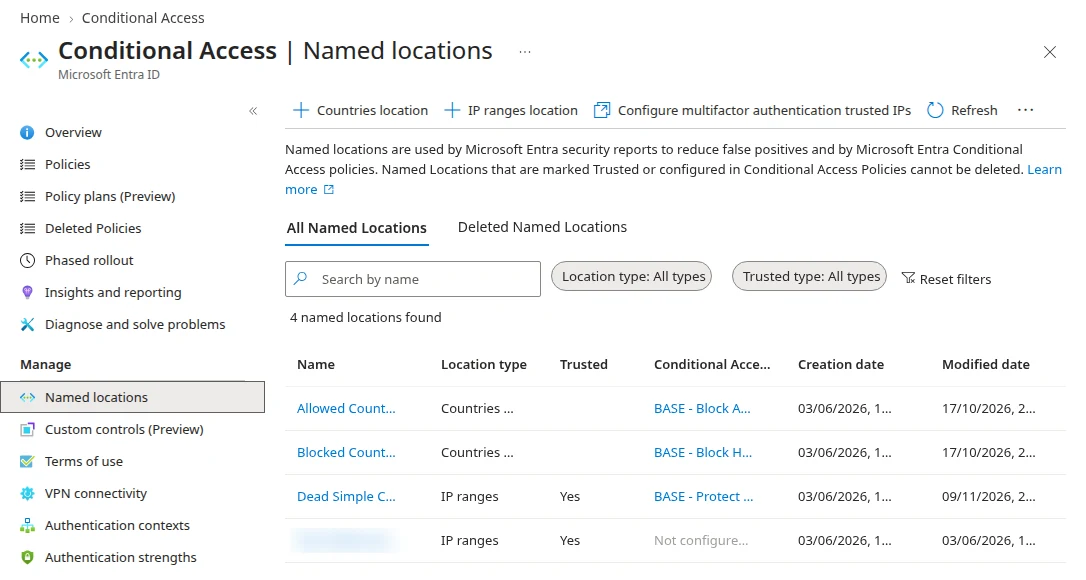
- Choose Countries location, name it, and tick the countries. Leave Include unknown countries/regions unticked on the allowed list, so sign-ins that cannot be placed are blocked.
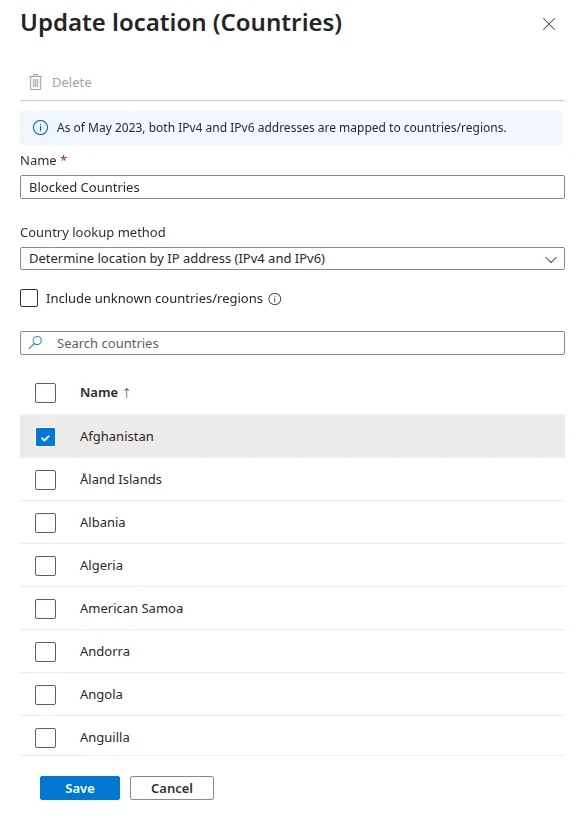
Country is worked out from the IP address. VPNs and some mobile networks can make a UK user look as if they are somewhere else, so test before you block.
Step 2: block other countries
- Under Policies, choose New policy. A new policy starts in Report-only, which records what would happen without enforcing it.
- Users: include All users. On the Exclude tab, add the break-glass accounts and the travel group.
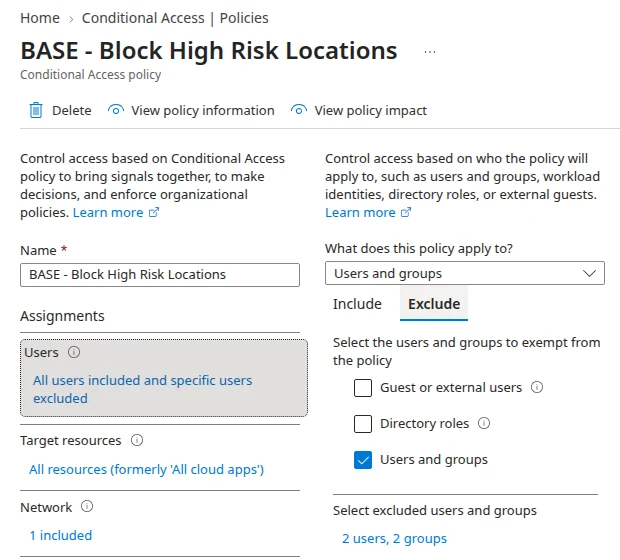
Our lab policy excludes two break-glass accounts and two groups. Their names are cropped out. - Target resources: All resources.
- Network: set Configure to Yes. Include Any network or location, and on the Exclude tab choose your allowed countries list. For the high-risk policy, include Selected networks and locations and choose the blocked list instead, as here.
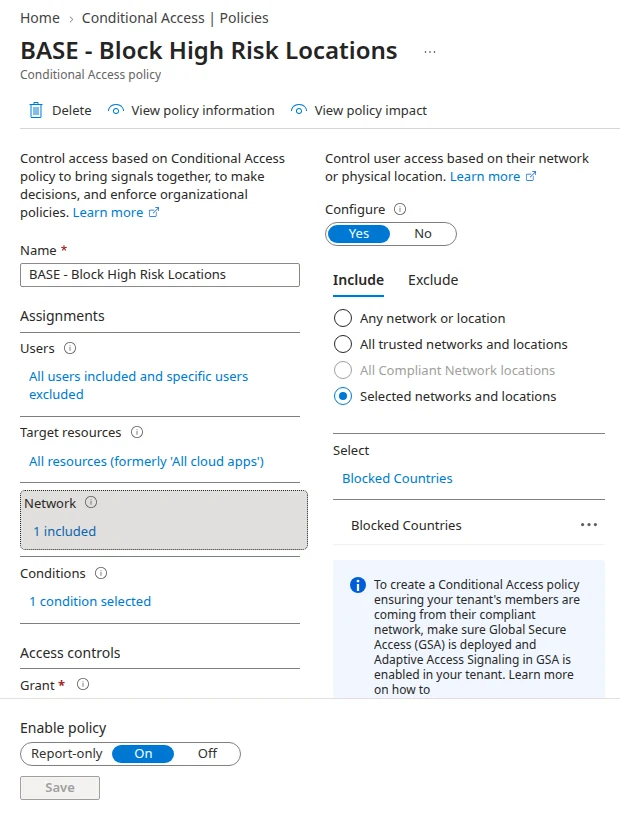
Locations now have their own Network heading. Older guides show them under Conditions. - Grant: Block access.
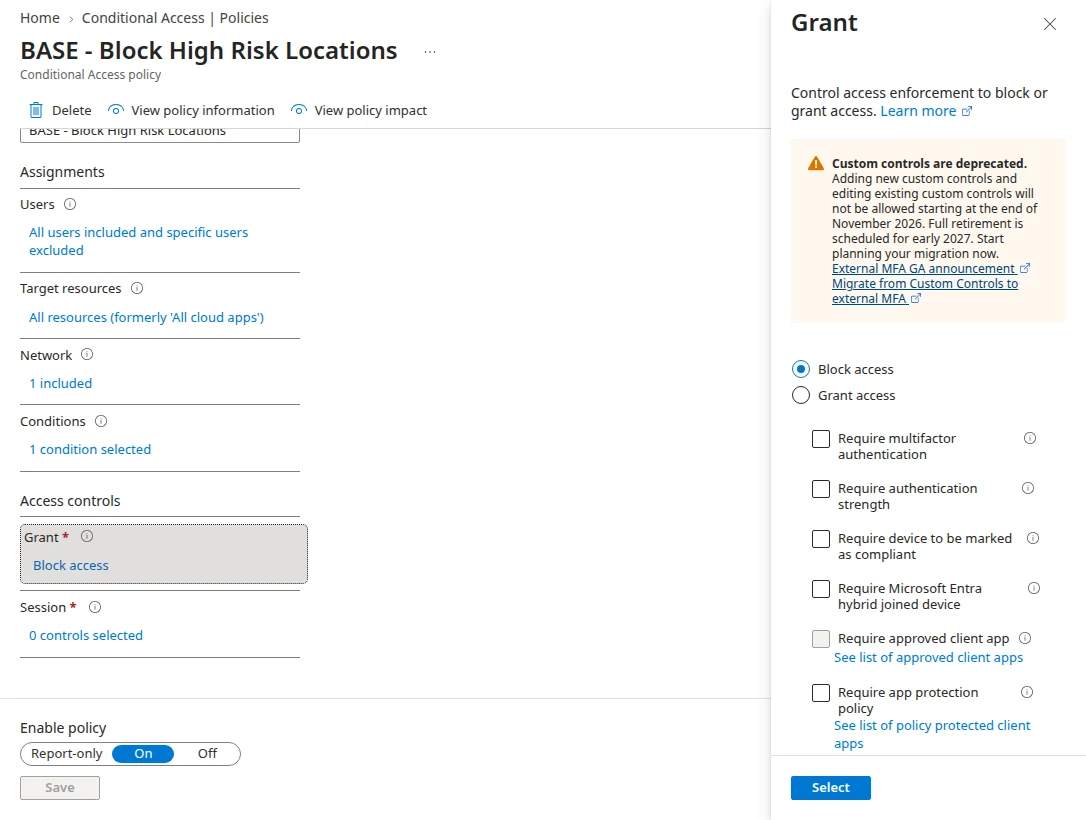
Here is the finished high-risk policy as the details pane shows it:
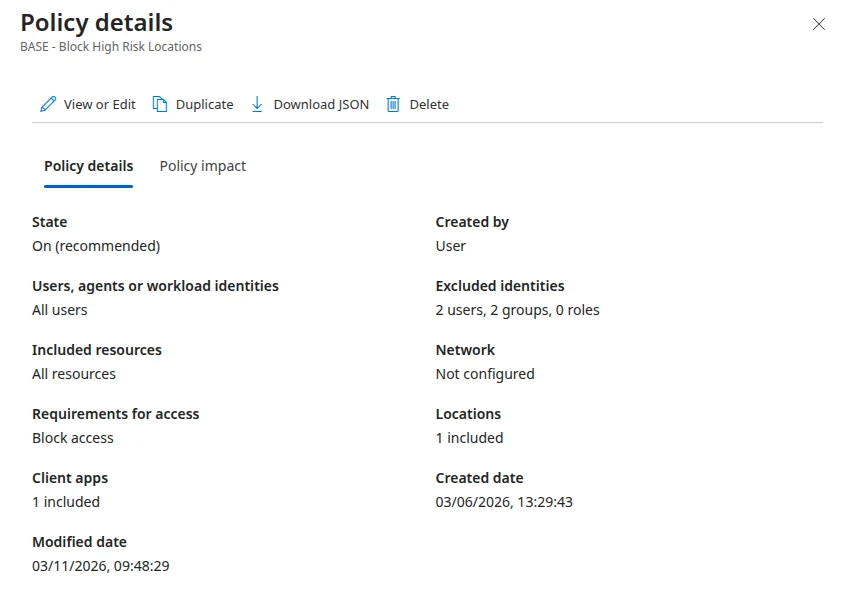
Step 3: sign-in frequency
By default, Microsoft keeps people signed in for a long time, which is right for most staff on managed devices. For admin roles and guests, a shorter limit is worth having. In a policy for the admin directory roles, open Session, tick Sign-in frequency, choose Periodic reauthentication, and set a number of hours or days. Our baseline asks admins and guests to sign in again every day.
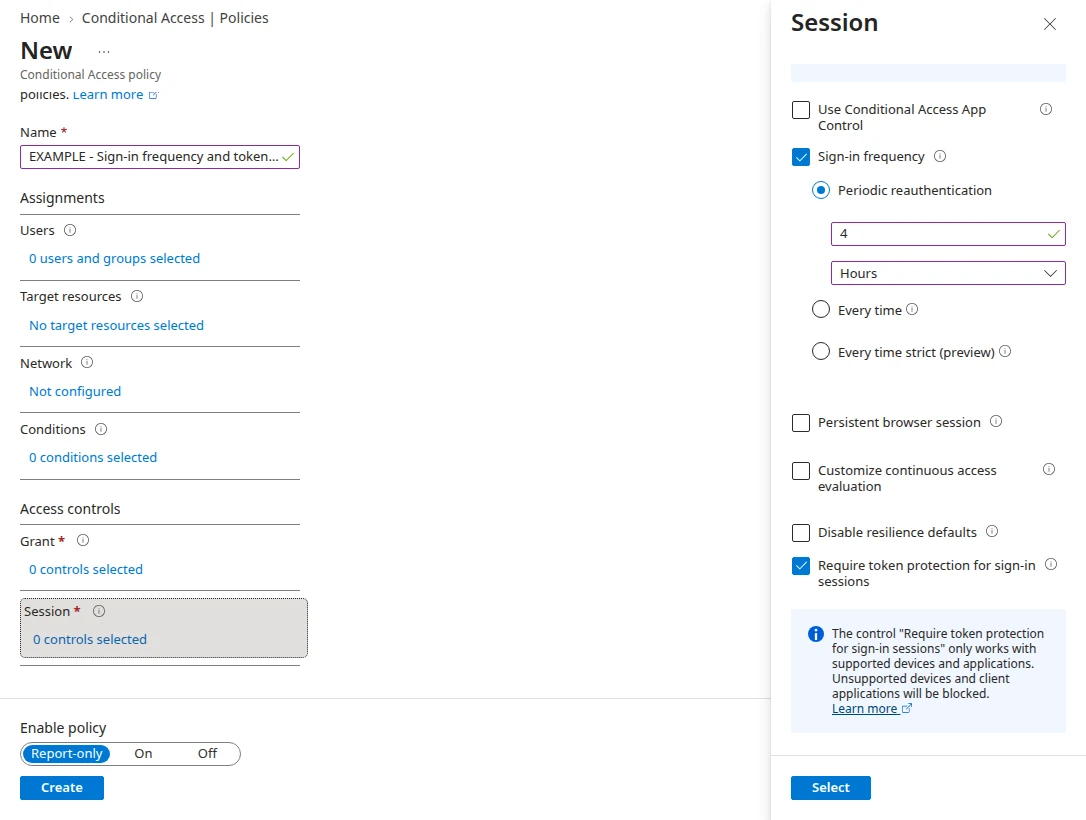
Every time asks people to sign in again each time the policy is checked. It suits high-risk moments, such as enrolling a device in Intune or a risky sign-in, rather than everyday use.
Step 4: token protection
An attacker who steals a session token, for example from an infected PC, can usually use it from their own computer without needing the password or MFA again. Require token protection for sign-in sessions, in the same Session panel, ties the session to the device it was issued to, so a copied token does not work elsewhere.
It only works with supported devices and apps, and blocks the rest. Scope it carefully:
- Device platforms: Windows. Microsoft also supports managed iPhones, iPads and Macs; start with Windows.
- Client apps: Mobile apps and desktop clients, not browsers.
- Target resources: Office 365 Exchange Online, Office 365 SharePoint Online and Microsoft Teams Services.
- Mode: report-only first. Check the sign-in logs, including the non-interactive ones, for anything it would block, such as older Office versions or devices that are not Entra-joined or registered.
Step 5: test with What If
On the Policies page, choose What if. Pick a user, an app, a device platform, a client app and a sign-in location, and it lists which policies would apply. If you give an IP address or a country, the page asks for both and says they "should correctly map together".
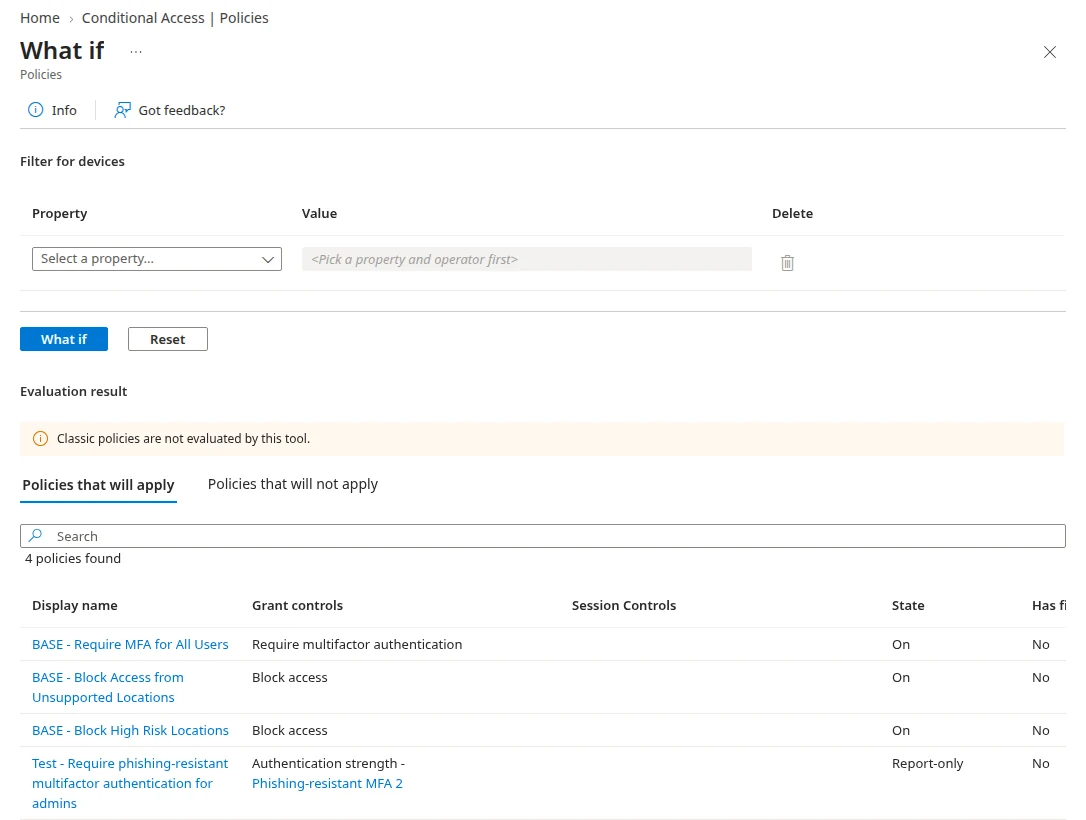
Step 6: read the sign-in logs
Under Sign-in logs, open any sign-in. The Conditional Access tab shows each enforced policy and its result. The Report-only tab shows what report-only policies would have done.
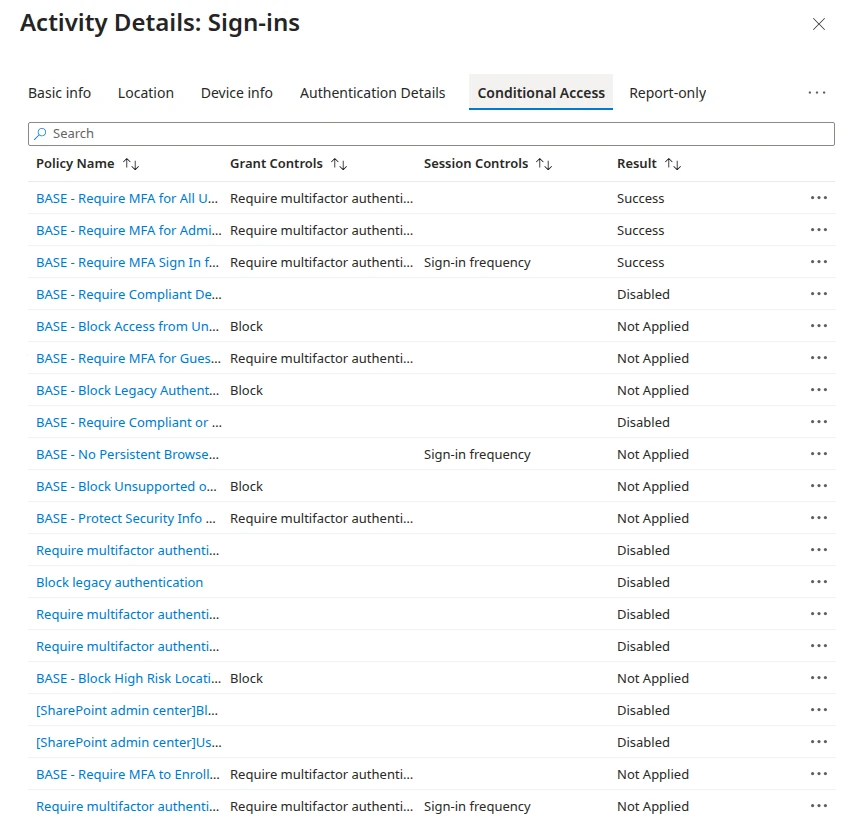
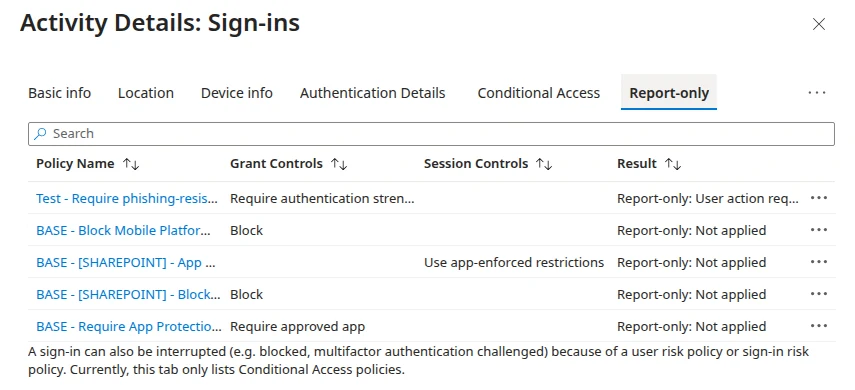
Leave a new policy in report-only for a week. If the Report-only tab shows it would have blocked someone it should not, fix the policy before you switch it on. "User action required" means the person would have been asked to do something, such as use a stronger sign-in method.
Common mistakes
- No break-glass exclusion. One mistake in a block policy can lock out every admin. Exclude two emergency accounts from every policy.
- Travel exclusions that never end. Remove people from the travel group when they get back, or, with Entra ID P2, use an access package with an end date.
- Treating country blocking as a defence on its own. Attackers can use a UK address. It removes a lot of noise, but MFA and token protection do the real work.
- Switching straight to On. A week in report-only finds the VPN user, the overseas supplier and the old printer that sends email.
- Forgetting service accounts. Accounts that sign in from cloud services may appear to come from abroad. Find them in the sign-in logs first.
Common questions
Should we block every country except the UK?
For most UK organisations, yes, with a travel group for people abroad and a short high-risk list that applies to everyone. Add other countries if you have staff or suppliers there.
Does token protection work in a web browser?
No. It protects desktop and mobile apps, such as Outlook and Teams on Windows, not browser sessions. Scope the policy to Mobile apps and desktop clients, or browser sign-ins will be blocked.
What does report-only mode do?
It evaluates the policy on every sign-in and records the result in the sign-in log, without enforcing anything. New policies now start in report-only by default.