

The short version
- In Intune, create a disk encryption policy that requires encryption, lets standard users encrypt silently, and will not turn BitLocker on until the recovery key is saved to Entra.
- Check each PC's key is in Entra: Devices, BitLocker keys in Entra, or the device's Recovery keys page in Intune.
- Someone locked out gets their own key at aka.ms/myrecoverykey from another device. If they cannot, an admin reads it from Entra after confirming who is asking.
- Once a key has been used, rotate it from Intune and check the new key arrives.
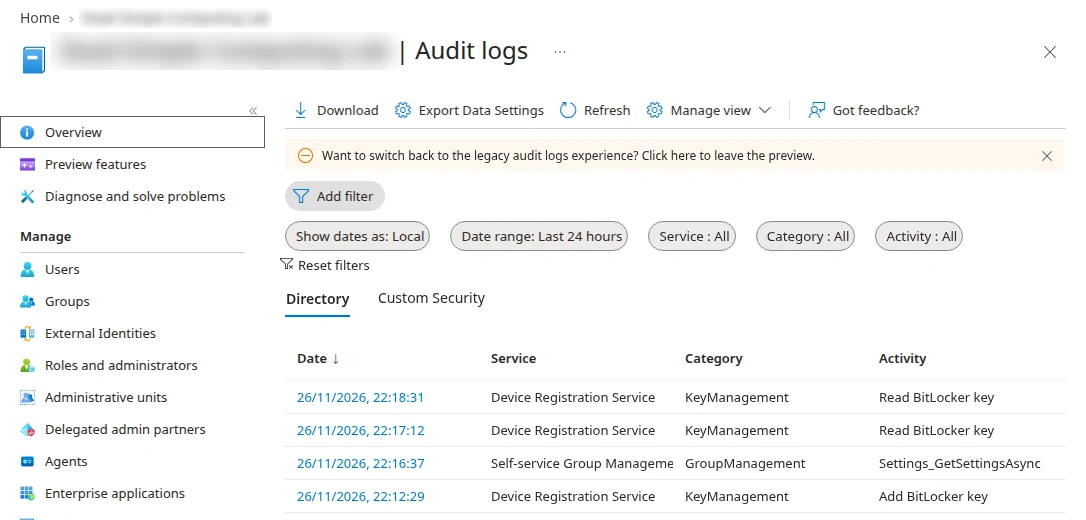
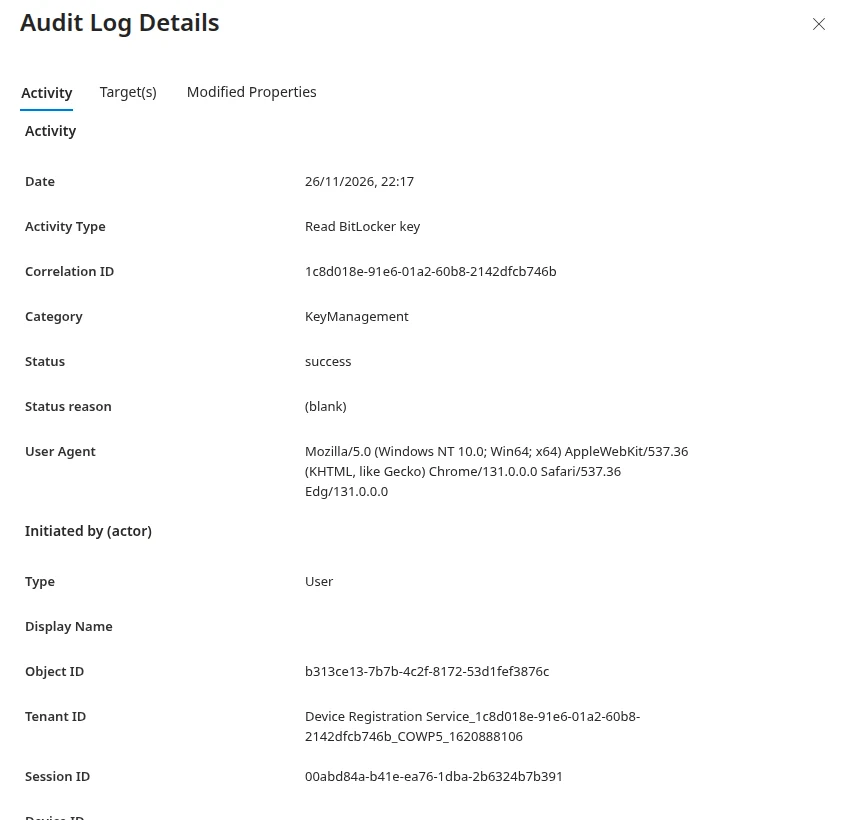
- Every time someone reads a key, Entra logs it. Check the audit log now and then.
The recovery screen
BitLocker unlocks the drive with the PC's TPM chip. If the TPM cannot vouch for the PC, Windows stops before it starts and asks for the 48-digit recovery key instead.
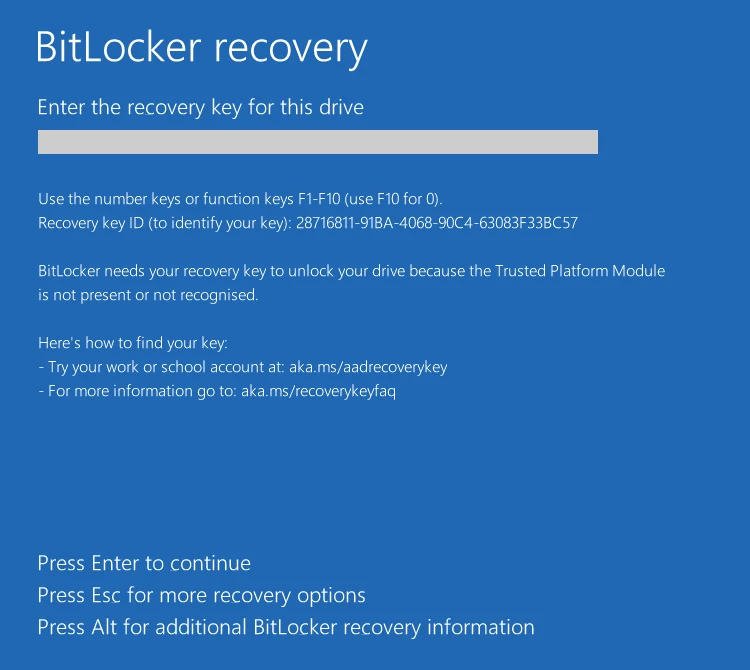
Common causes are a firmware update installed without suspending BitLocker first, a change to Secure Boot or the TPM, a motherboard repair, or the drive being moved to another PC. Repeated wrong PINs at start-up can also trigger it.
The recovery key ID on the screen is not the key. It is a label that tells you which key to fetch, because a PC can have more than one. Match its first eight characters to the key ID in Entra.
Staff: find your own key
The person who set up the PC can fetch the key themselves from a phone or another computer.
- Go to aka.ms/myrecoverykey and sign in with the work account. It opens Devices in My Account.
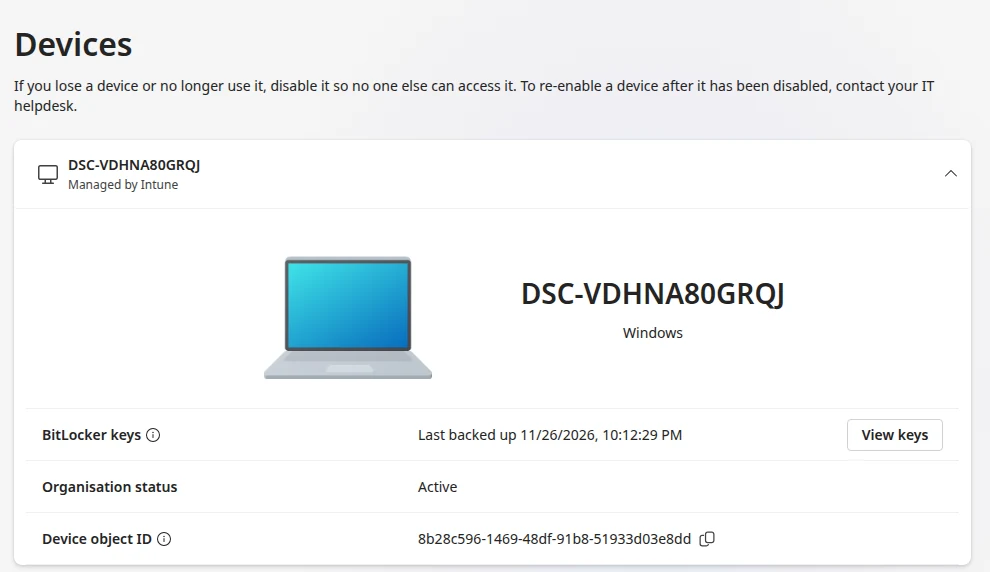
- Open the PC and choose View keys. Each key is listed with its ID and the date it was backed up.
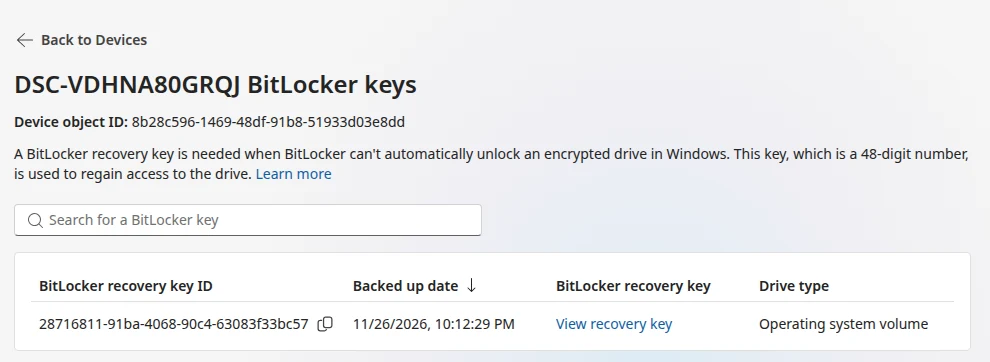
- Choose View recovery key on the line whose ID matches the screen, and type the 48 digits into the PC.
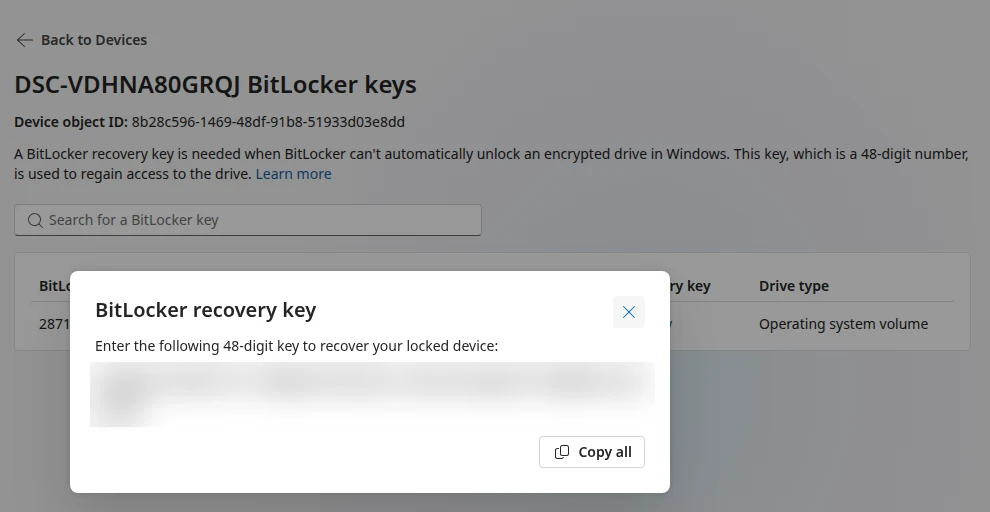
The key is blurred here. Viewing it is recorded in the audit log.
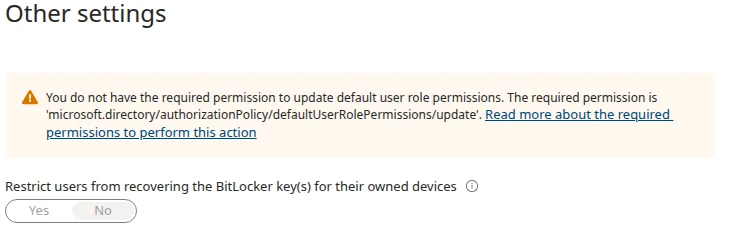
This works only for the device's owner, and only while the Entra setting Restrict users from recovering the BitLocker key(s) for their owned devices is No, which is the default. It is under Devices, Device settings in the Entra admin centre. If a Conditional Access policy requires a compliant device, it will also stop someone opening the page from a personal phone.
Admins: find a key
Before reading a key out to someone, confirm who they are the way you would for a password reset. The key unlocks everything on the drive.
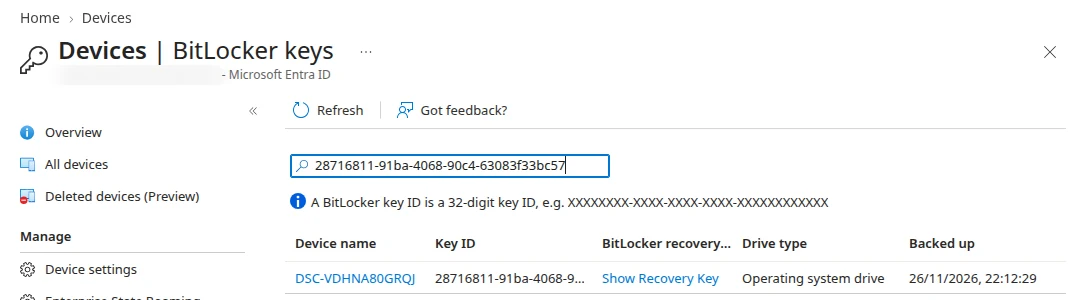
- In Entra: go to Entra ID, Devices, BitLocker keys, and search for the full key ID from the recovery screen.
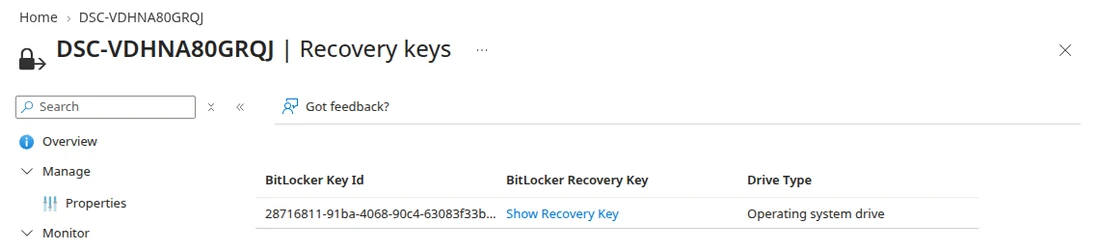
- In Intune: open the device under Devices, then Recovery keys, and choose Show Recovery Key.
Admin roles that can read keys include Global Reader, Helpdesk Administrator, Cloud Device Administrator, Intune Administrator and Security Administrator. Give helpdesk staff the narrowest of these that does the job.
The Intune policy that makes it work
Create it under Endpoint security, Disk encryption, Create Policy, platform Windows, profile BitLocker. These are the settings we use, and the ones our test PC needed before encryption and rotation both worked without anyone at the keyboard.
| Setting | Value | Why |
|---|---|---|
| Require Device Encryption | Enabled | Turns BitLocker on. |
| Allow Warning For Other Disk Encryption | Disabled | Needed for silent encryption, with no prompt to the user. |
| Allow Standard User Encryption | Enabled | Staff who are not local admins can still be encrypted silently. |
| Configure Recovery Password Rotation | Refresh on for Entra ID-joined devices | Allows a key to be changed after it has been used. |
| Choose how BitLocker-protected operating system drives can be recovered | Enabled | Opens the backup settings below. |
| Save BitLocker recovery information to AD DS for operating system drives | True | On an Entra-joined PC this saves the key to Entra. |
| Do not enable BitLocker until recovery information is stored to AD DS for operating system drives | True | No key in Entra, no encryption. Rotation also depends on it. |
| Omit recovery options from the BitLocker setup wizard | True | Staff are not asked where to save a key. |
| Require additional authentication at startup | Not configured, or Enabled with every start-up PIN and key option set to Do not allow | Silent encryption cannot set a start-up PIN or key. Check no security baseline asks for one. |
Assign it to a device group. If you already have an older BitLocker profile assigned, check the two do not set the same settings differently.
Check it worked
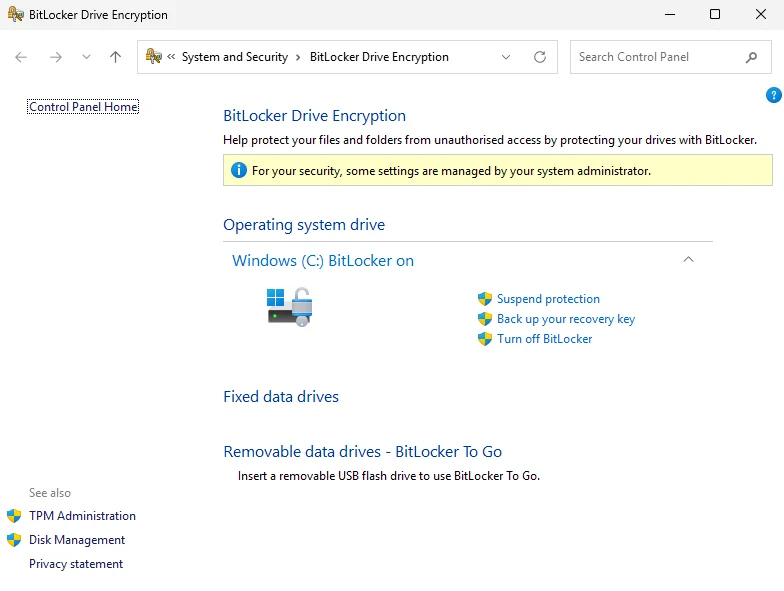
- On the PC: Control Panel, BitLocker Drive Encryption shows BitLocker on for the C: drive, and a note that some settings are managed by your administrator.
- In Intune: the device's Recovery keys page lists a key. The Encryption report under Devices, Monitor takes up to 24 hours to catch up, so trust the key list first.
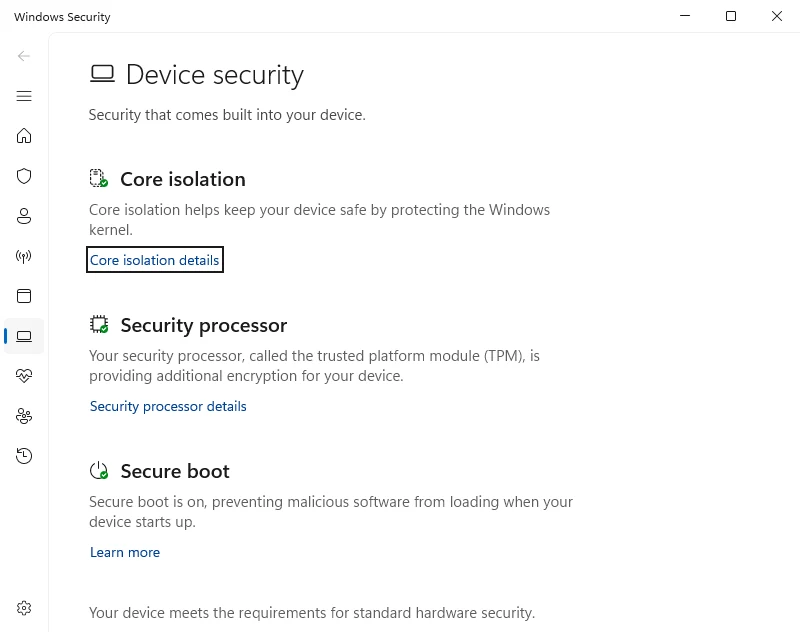
- The TPM: if encryption never starts, open Windows Security, Device security, Security processor details. Both Attestation and Storage should say Ready.
Two faults from our test PC
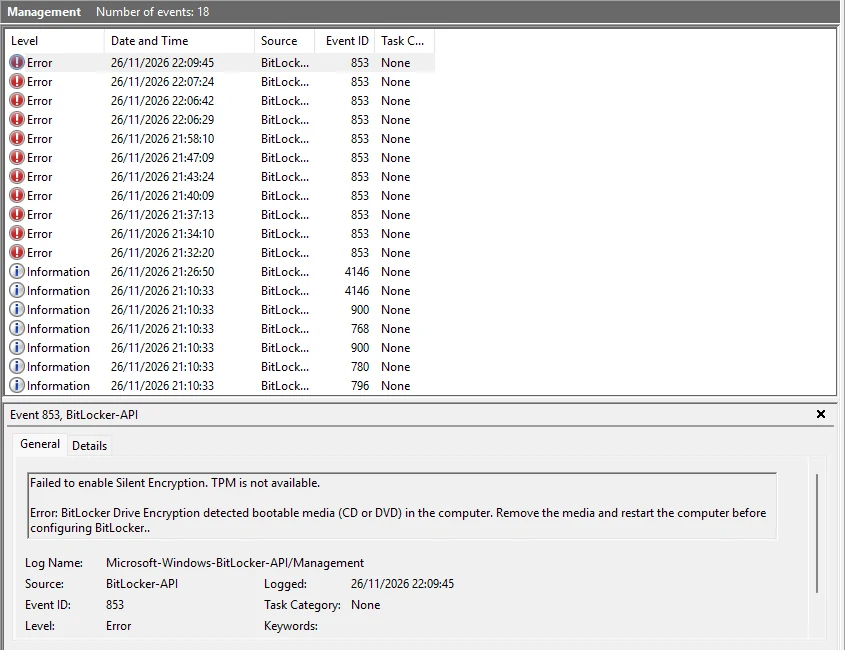
Both of these looked fine in Intune. The reason was only in the PC's event log, under Applications and Services Logs, Microsoft, Windows, BitLocker-API, Management.
1. "BitLocker waiting for activation" and event 853
Control Panel said BitLocker waiting for activation and no key reached Entra. Event 853 said why: Failed to enable Silent Encryption, because BitLocker detected bootable media (CD or DVD) in the computer. Our installation disc was still in the drive. A USB stick or DVD left in a real laptop does the same. Remove it and restart.
2. Key rotation said "Complete" but nothing changed
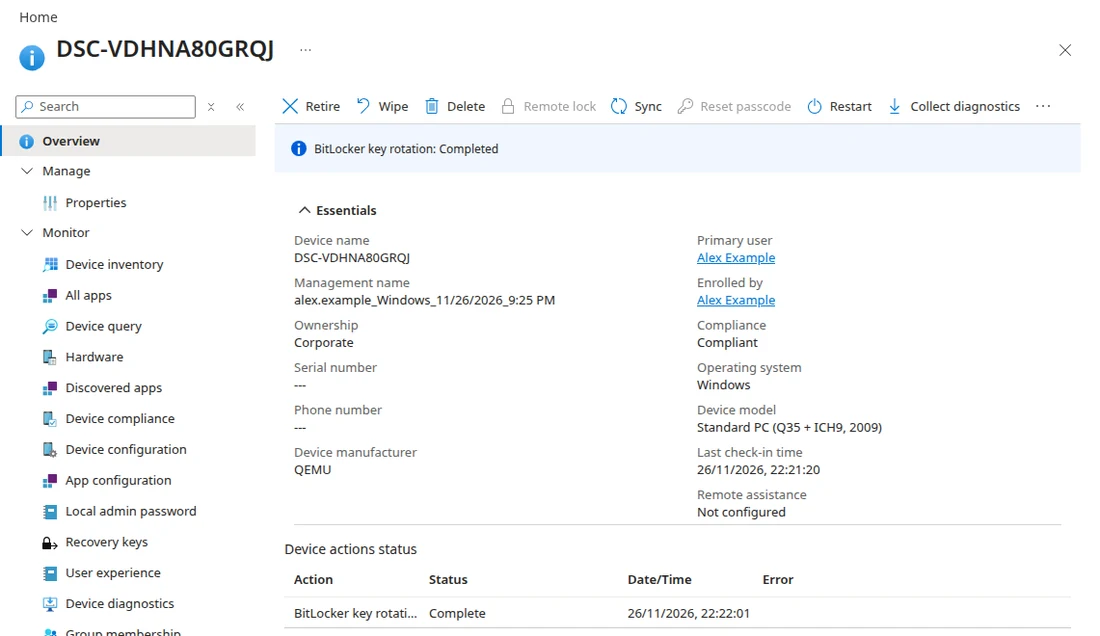
Intune reported BitLocker key rotation: Complete, but the old key stayed in Entra. Event 858 on the PC: Recovery Password Rotation failed, because the backup policy for BitLocker recovery information is not set to required for the OS drive. Setting Do not enable BitLocker until recovery information is stored to True fixed it: the next rotation put a new key in Entra within a minute. Always check for a new key ID in Entra, not just the status in Intune.
Rotate a key after it has been used
Once a key has been typed in, or read out over the phone, treat it as known. Change it.
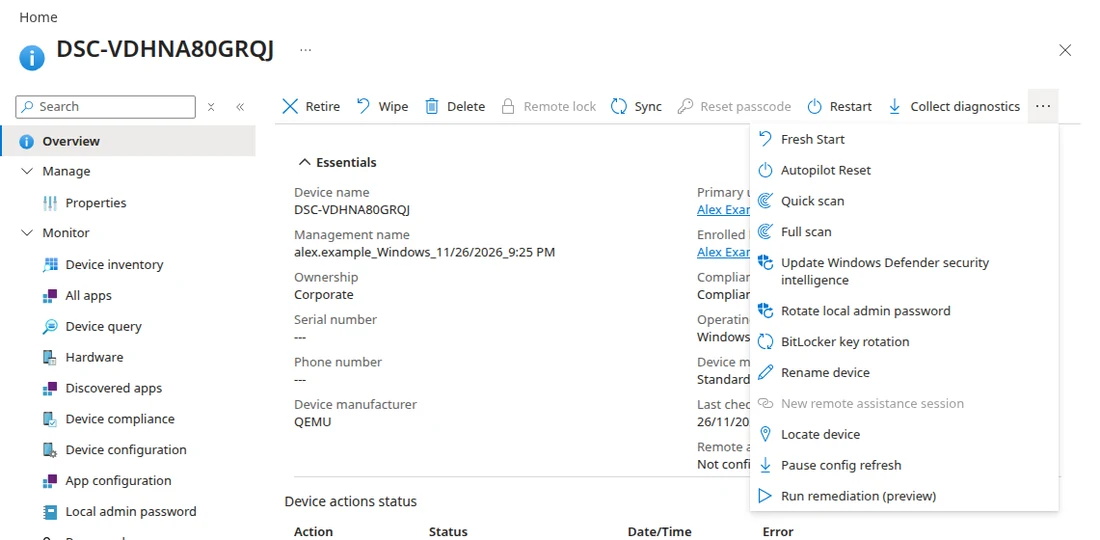
- In Intune, open the device, choose the ... menu, then BitLocker key rotation.
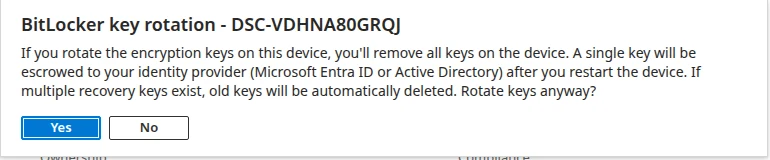
- Confirm with Yes. Intune removes the old keys from the PC and saves a single new one to Entra.
- Check the device's Recovery keys page shows a new key ID with today's date. The status under Device actions status is not enough on its own, as fault 2 above shows.
Who has read a key
Every key read is in the Entra audit log under the KeyManagement category, as Read BitLocker key, with who did it and when. Add BitLocker key shows when a PC backed one up.
Common questions
What if the key is not in Entra?
There is no way round BitLocker without the key. Check whether it was saved to a Microsoft account, printed, or kept on a USB stick when the PC was set up. If not, the data on the drive is gone: reset the PC and restore from OneDrive or your backup. Requiring the key in Entra before encryption starts prevents this.
Can staff see their own recovery key?
Yes, at aka.ms/myrecoverykey, for PCs they own, unless you have set Restrict users from recovering the BitLocker key(s) for their owned devices to Yes. Each view is recorded in the audit log.
Should we suspend BitLocker before a BIOS update?
Yes, unless the update tool does it for you. Suspending BitLocker for one restart lets the PC start without the key after the firmware changes. Some manufacturers' tools, such as Dell Command Update, suspend it for you. Check what yours does.