

The short version
- Turn on passkeys in Authentication methods, device-bound and with self-service set-up.
- Get people registered: the registration campaign asks them at sign-in, and a Temporary Access Pass covers new starters and lost phones.
- Create a Conditional Access policy that requires the Phishing-resistant MFA authentication strength for admin roles. Run it in report-only mode first.
- Turn it on for admins, then widen it to everyone as people register.
- Switch off text message and voice call once everyone has a stronger method.
Why ordinary MFA is not enough
Modern phishing kits put a fake sign-in page between the user and Microsoft. The user types their password and approves the MFA prompt as normal. The kit passes both to Microsoft and keeps the session cookie that comes back, so the attacker is signed in without ever needing the phone again.
A passkey is tied to the real website address. On a fake page the browser refuses to use it, so there is nothing to pass through. That is what "phishing-resistant" means.
What counts as phishing-resistant
| Method | Phishing-resistant | Where it lives |
|---|---|---|
| Passkey in Microsoft Authenticator | Yes | The user's phone (iOS 17, Android 14 or later) |
| FIDO2 security key | Yes | A USB or NFC key |
| Windows Hello for Business | Yes | The user's Windows PC |
| Platform Credential for macOS | Yes | The user's Mac |
| Certificate-based authentication (multifactor) | Yes | A smart card or a certificate on the device |
| Authenticator approval with number matching | No | The user's phone |
| Text message, voice call, one-time codes | No | Anywhere |
Step 1: turn on passkeys
- In the Microsoft Entra admin centre, go to Entra ID, Authentication methods, then Policies.
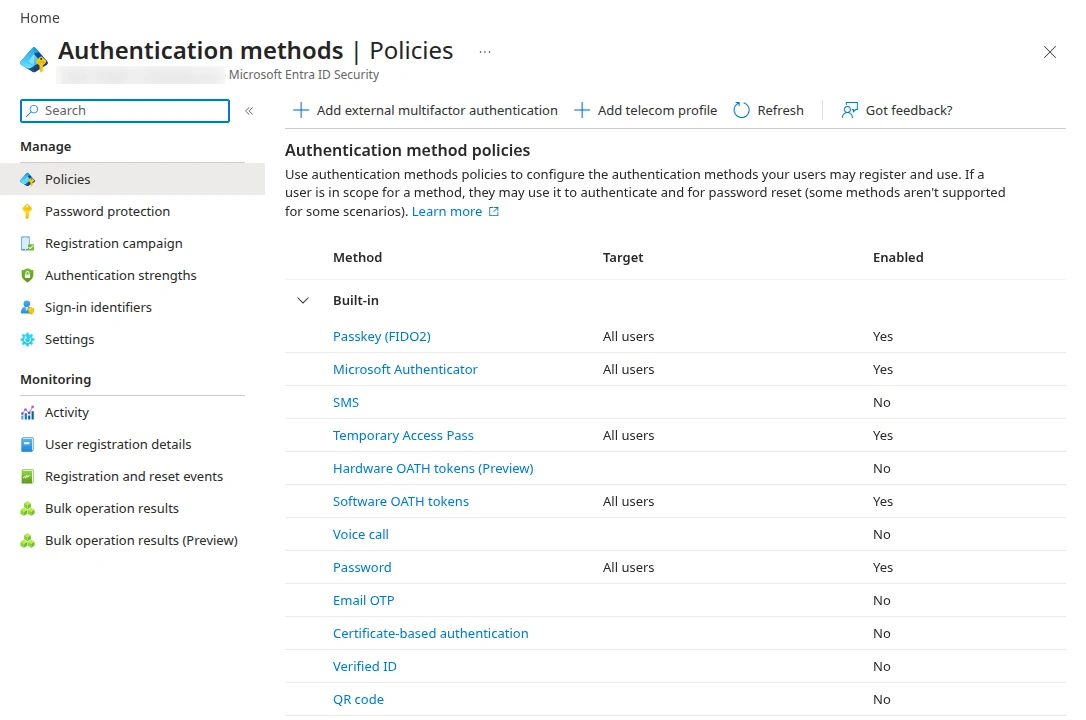
DSC's lab tenant set to our standard: passkeys on, text message, voice and email codes off. - Open Passkey (FIDO2), turn it on, and target All users or a pilot group.
- On the Configure tab, tick Allow self-service set-up. Passkey settings now live in passkey profiles: the default profile sets whether passkeys must be device-bound, whether attestation is enforced, and any key restrictions.
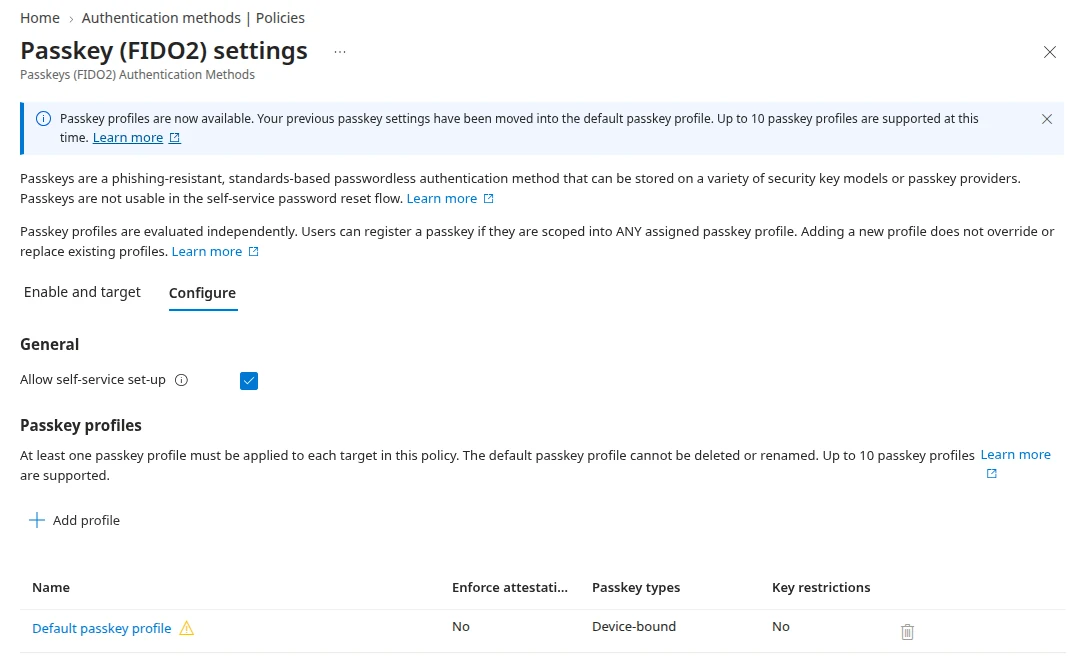
We use device-bound passkeys, kept in Microsoft Authenticator or on a security key rather than synced through Google or iCloud. If you enforce attestation, check that Microsoft Authenticator's passkeys are still allowed.
Step 2: get people registered
- Registration campaign. Under Authentication methods, Registration campaign, Microsoft asks users at sign-in to set up a passkey, and lets them put it off a few times.
- Temporary Access Pass. A time-limited pass lets a new starter, or someone who has lost their phone, sign in once and register a passkey. Keep the lifetime short and issue it only after confirming who is asking.
- Staff guidance. Point people at our staff guides: going passwordless and moving Authenticator to a new phone.
Step 3: authentication strengths
An authentication strength is a named list of acceptable methods. Microsoft provides Phishing-resistant MFA as a built-in strength. You can also create your own, for example passkeys only.
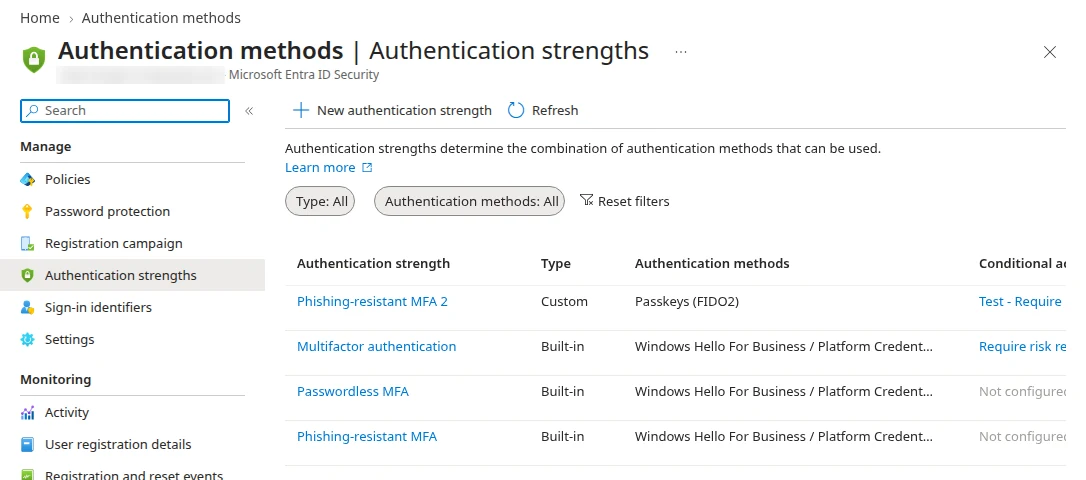
Find them under Authentication methods, Authentication strengths.
Step 4: require it with Conditional Access
- Go to Entra ID, Conditional Access, Policies, and choose New policy.
- Under Users, include the admin directory roles, and exclude your break-glass accounts.
- Under Target resources, choose All resources.
- Under Grant, choose Grant access, tick Require authentication strength, and pick Phishing-resistant MFA. It cannot be combined with Require multifactor authentication in the same policy.
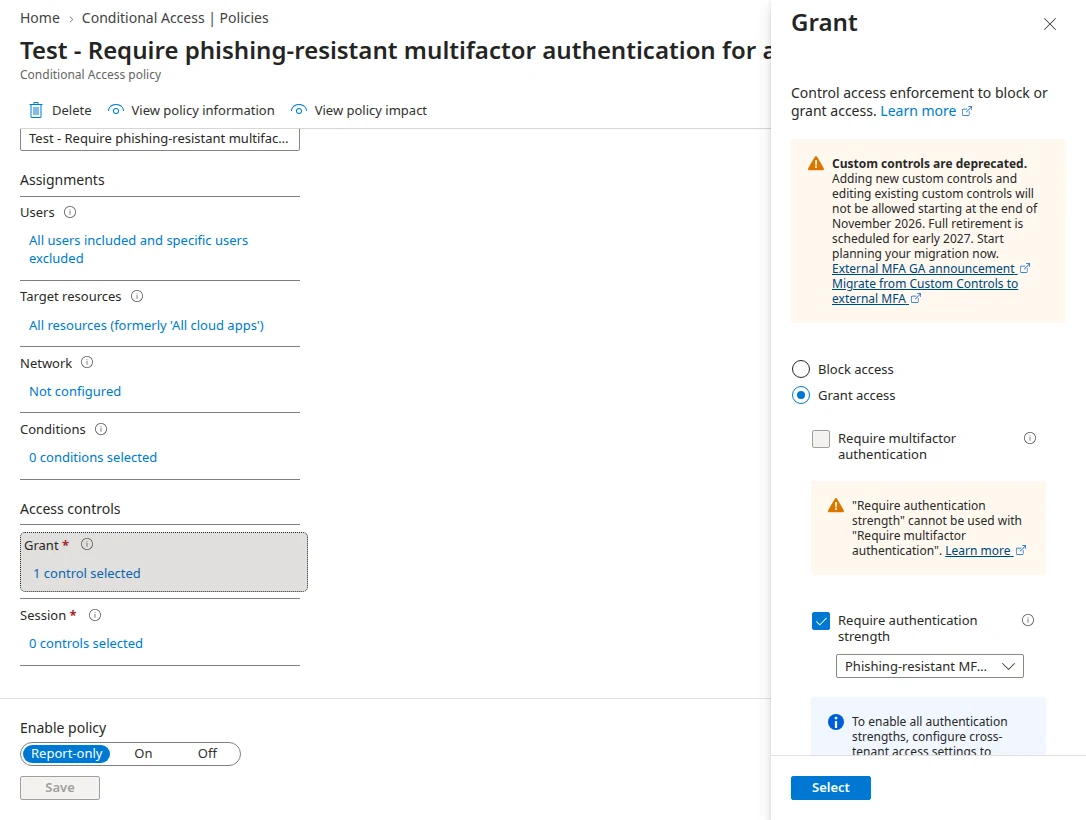
- Set the policy to Report-only. Check the policy's impact and the sign-in logs for a week, then switch it On.
Once admins are done, repeat for everyone, group by group, as people register. Conditional Access and authentication strengths need Microsoft Entra ID P1, which is included in Microsoft 365 Business Premium, Microsoft 365 E3 and Microsoft 365 E5, but not Office 365 E3. Passkeys themselves work on every Entra ID edition.
Break-glass accounts
Keep two emergency admin accounts that are excluded from Conditional Access, so a mistake in a policy cannot lock everyone out. Give each a FIDO2 security key, store the keys apart, and alert on every sign-in to those accounts.
How we roll it out
We follow the same order for every organisation: our lab tenant, then our own staff, then one willing person at the client, then admins, then everyone else. Staff are offered passkeys rather than forced onto them until the last step, and text message is switched off only when everyone has something stronger. The result is fewer password resets as well as fewer successful phishing attacks.
Common questions
Is Authenticator approval with number matching phishing-resistant?
No. Number matching stops people approving prompts they did not start, but a phishing kit that relays the real sign-in shows the real number. Use a passkey in Authenticator instead.
Does every member of staff need a security key?
No. A passkey in Microsoft Authenticator works on iOS 17 and Android 14 or later, and Windows Hello for Business covers work PCs. Security keys suit admins, break-glass accounts and people who cannot use a phone.
What happens when someone loses their phone?
They sign in with another passkey or Windows Hello if they have one. If not, an admin issues a Temporary Access Pass after confirming who they are, and they register a new passkey.