

The short version
- Turn on Standard protection for email in the Defender portal.
- Replace security defaults with a small set of Conditional Access policies.
- Enrol devices in Intune, with BitLocker, Windows LAPS and update policies.
- Onboard those devices to Defender for Business.
- Use Secure Score as the to-do list for what is left.
- Then add sensitivity labels and data loss prevention.
What is included
| Feature | What it does | Where to set it up |
|---|---|---|
| Microsoft Entra ID P1 | Conditional Access: who can sign in, from where, on what device, with which method | Entra admin centre |
| Microsoft Intune | Device management, compliance, BitLocker, Windows LAPS, Autopilot | Intune admin centre |
| Defender for Business | Antivirus, endpoint detection and response and attack surface reduction on Windows and Mac; mobile threat protection on iOS and Android | Defender portal |
| Defender for Office 365 Plan 1 | Safe Links, Safe Attachments and anti-phishing for email and Teams | Defender portal |
| Microsoft Purview | Sensitivity labels and data loss prevention | Purview portal |
Business Premium is available for up to 300 users.
1. Turn on email protection
In the Defender portal, go to Email & collaboration, Policies & rules, Threat policies, then Preset security policies. Built-in protection applies on its own, but Standard protection is off until you turn it on. It adds Microsoft's recommended anti-spam, anti-malware and anti-phishing settings, as well as Safe Links and Safe Attachments.
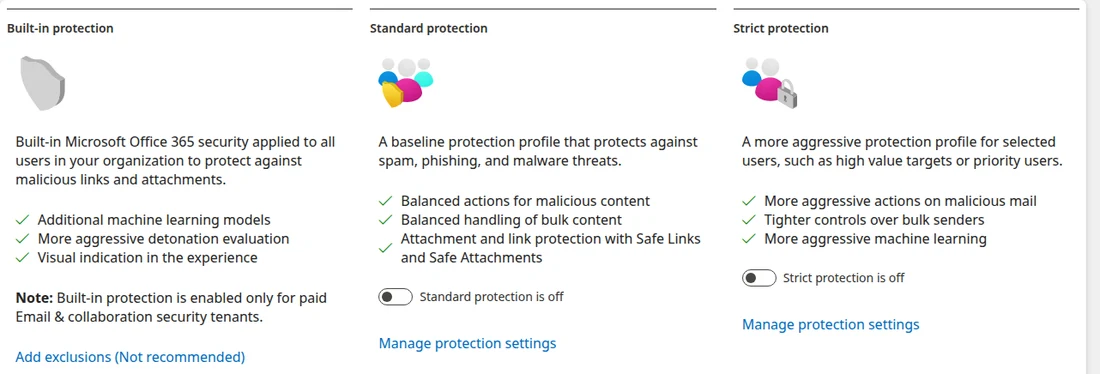
Apply Standard to everyone and Strict to people who handle payments or are likely targets.
2. Conditional Access
Security defaults are a sensible start, but they cannot make exceptions or go further. Once you create your own policies, switch security defaults off. A small baseline covers most of the risk:
- Require MFA for all users.
- Block legacy authentication.
- Block sign-ins from countries you do not work in.
- Require phishing-resistant MFA for admins. See phishing-resistant MFA in Microsoft 365.
Exclude two break-glass accounts from every policy, and run each new policy in report-only mode before turning it on.
3. Manage devices with Intune
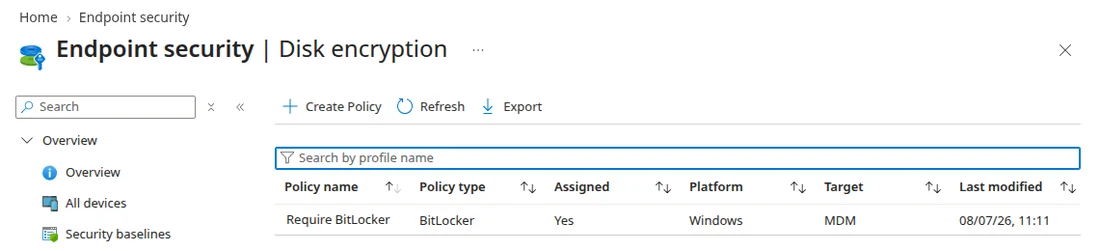
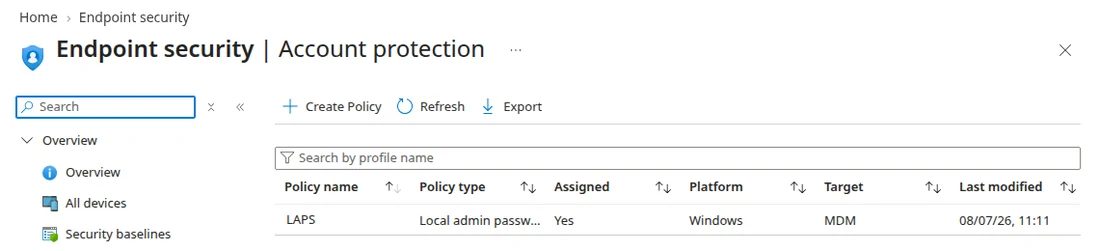
Enrol work devices, with Windows Autopilot for new ones, then add policies under Endpoint security:
- Disk encryption: require BitLocker, with the recovery key saved to Entra ID.
- Account protection: Windows LAPS gives every device its own local admin password, rotated automatically.
- Device compliance: define what a healthy device is, and let Conditional Access check it.
4. Onboard devices to Defender for Business
Connect Defender for Business to Intune, then onboard devices with an endpoint detection and response policy. Check the device inventory in the Defender portal shows every device, and that alerts reach someone who will act on them.
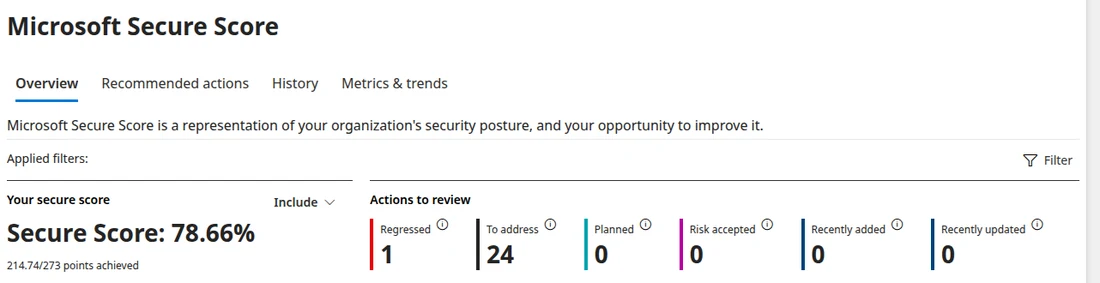
5. Measure with Secure Score
Microsoft Secure Score in the Defender portal lists recommended actions and the points each is worth. Treat it as a to-do list rather than a target: some actions do not suit every organisation, and you can mark those as risk accepted with a reason.
How it maps to Cyber Essentials
| Cyber Essentials control | Business Premium features that help |
|---|---|
| Firewalls | Windows Firewall policies in Intune |
| Secure configuration | Intune configuration and compliance policies, Windows LAPS |
| Security update management | Windows Update rings and app updates in Intune |
| User access control | Conditional Access, MFA, separate admin accounts |
| Malware protection | Defender for Business, Safe Attachments |
The licence does not certify anything. An assessment checks how each device and account is actually configured. As an appointed certification body for Cyber Essentials and Cyber Essentials Plus, we see the same gaps often: devices never enrolled, MFA with exceptions nobody remembers, and admin rights left on everyday accounts.
For an example of the whole rollout, see our Business Premium security rollout case study.
Common questions
What does Business Premium add over Business Standard?
Business Standard has the Office apps, email and Teams. Business Premium adds Entra ID P1 for Conditional Access, Intune, Defender for Business, Defender for Office 365 Plan 1 and Purview information protection. Since 2026 Business Standard has time-of-click link checking, but not the rest of Defender for Office 365.
What if we have more than 300 users?
Business Premium is limited to 300 users. Beyond that, organisations move to Microsoft 365 E3 or E5, with security add-ons as needed.
Do we still need separate antivirus?
Defender for Business provides antivirus and endpoint detection and response for Windows and macOS, and mobile threat protection for iOS and Android: anti-phishing and web protection on both, and malware scanning on Android. Many organisations remove a separate product once Defender is onboarded and monitored.