

The short version
- Give the people who will use PIM a Microsoft Entra ID P2 licence. Business Premium includes P1, not P2.
- Keep two break-glass accounts as permanent Global Administrators, outside PIM and Conditional Access.
- Tighten the role settings for Global Administrator and the other high-impact roles: shorter activation, MFA, a reason, and approval for the most powerful roles.
- Change everyone else's permanent admin roles to eligible.
- Admins activate a role from My roles when they need it.
- Act on PIM's alerts, and review who is eligible for what every quarter.
What you need
- Licences: Microsoft Entra ID P2, or Microsoft Entra ID Governance, for each person who is eligible for a role, approves activations or does access reviews. Microsoft 365 E5 includes P2. For Business Premium, add Entra ID P2 for your admins and for the people who approve or review their access.
- Rights to change it: Privileged Role Administrator or Global Administrator. Our lab screens were taken with a read-only account, which is why Edit is greyed out in them.
Find PIM
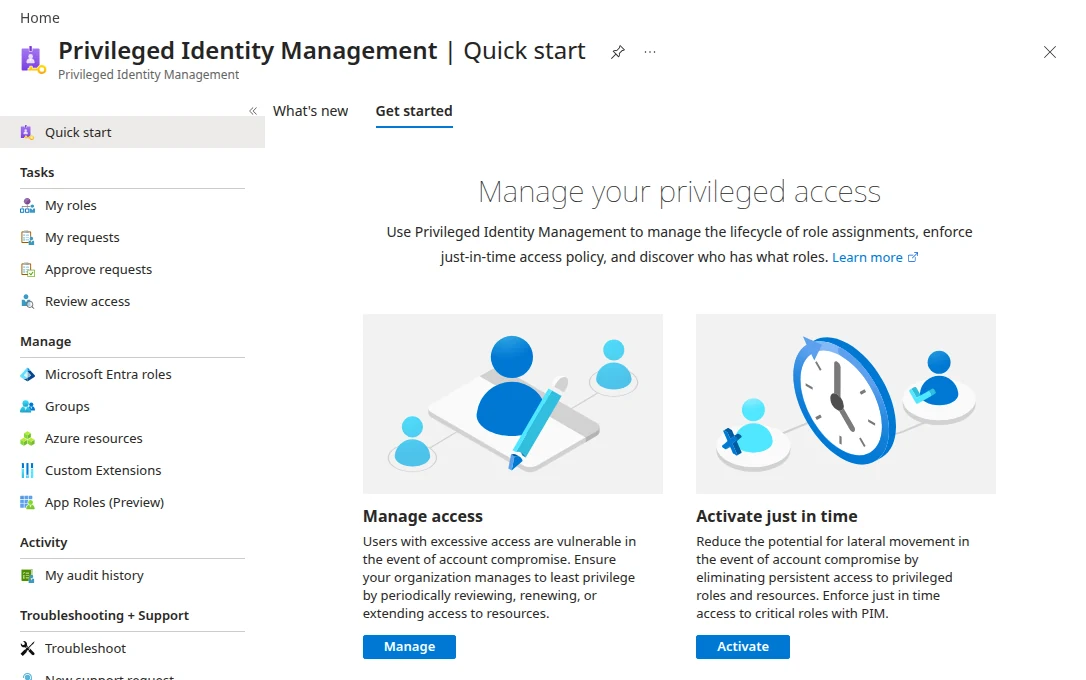
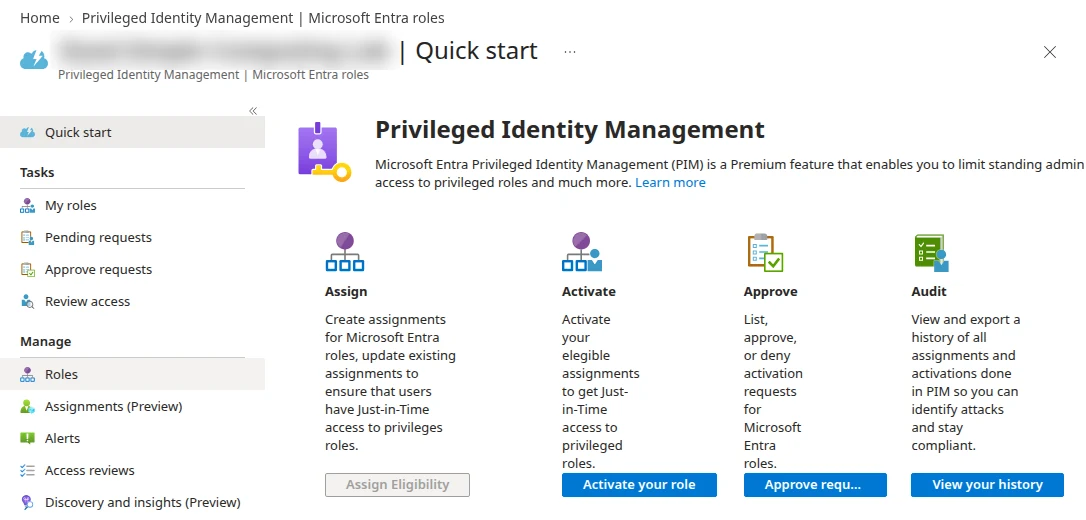
In the Microsoft Entra admin centre, go to ID Governance, Privileged Identity Management, or search for "PIM" at the top. Microsoft Entra roles covers admin roles such as Global Administrator and Exchange Administrator. Groups and Azure resources work the same way for group membership and Azure subscriptions.
Step 1: role settings
Each role has its own settings. Open Roles, choose a role, then Role settings. These are Microsoft's defaults for Global Administrator, as our lab shows them:
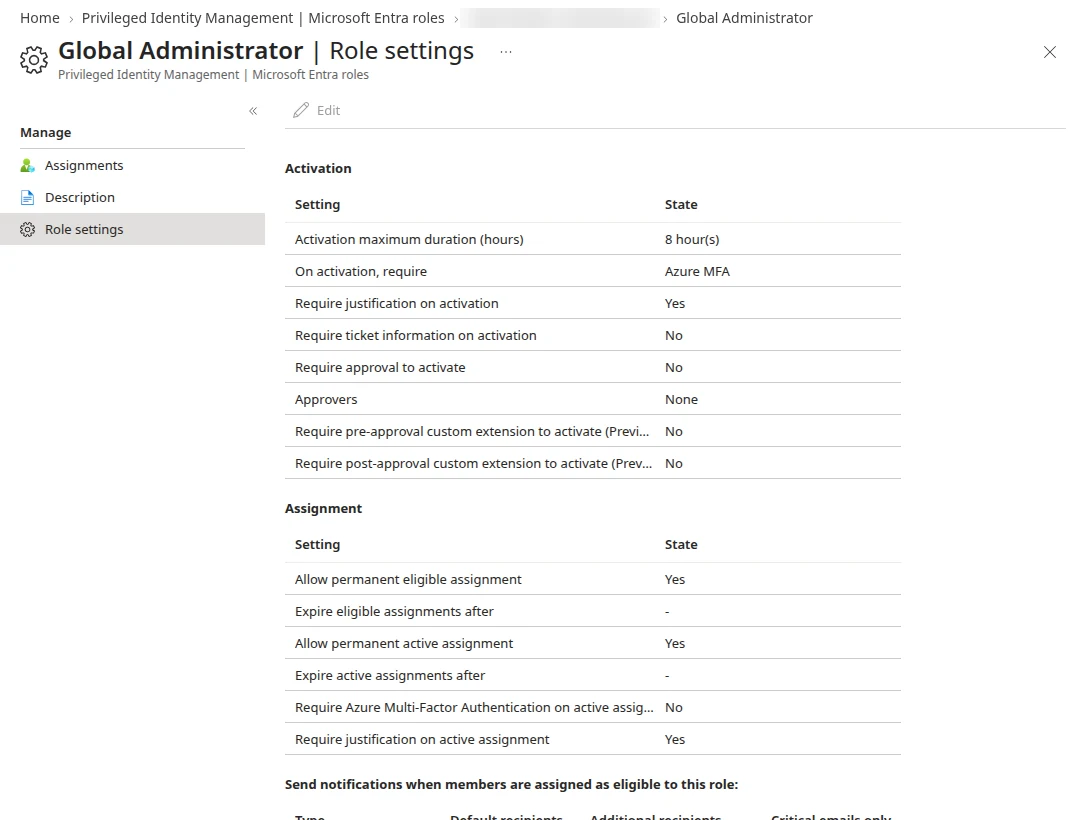
For Global Administrator and Privileged Role Administrator we recommend:
| Setting | Default | We recommend |
|---|---|---|
| Activation maximum duration | 8 hours | 4 hours or less |
| On activation, require | Azure MFA | MFA, or a Conditional Access authentication context that asks for phishing-resistant MFA |
| Require justification on activation | Yes | Yes |
| Require ticket information on activation | No | Yes, if you have a ticket system |
| Require approval to activate | No | Yes, with at least two approvers |
| Allow permanent active assignment | Yes | No, once your break-glass accounts are assigned. Switch it back briefly if you need to add or replace one. |
| Expire eligible assignments after | Never | One year, then renew |
For lower roles such as Exchange Administrator or Helpdesk Administrator, keep MFA and a reason, and skip approval so day-to-day work is not held up.
Step 2: make admins eligible
- Open Roles, choose the role, then Add assignments.
- Pick the person, set the assignment type to Eligible, and set an end date.
- Remove their old permanent assignment, which shows under Active assignments as Permanent.
Start with yourself for a week, then move the other admins over. Leave the break-glass accounts alone.
Step 3: activate a role
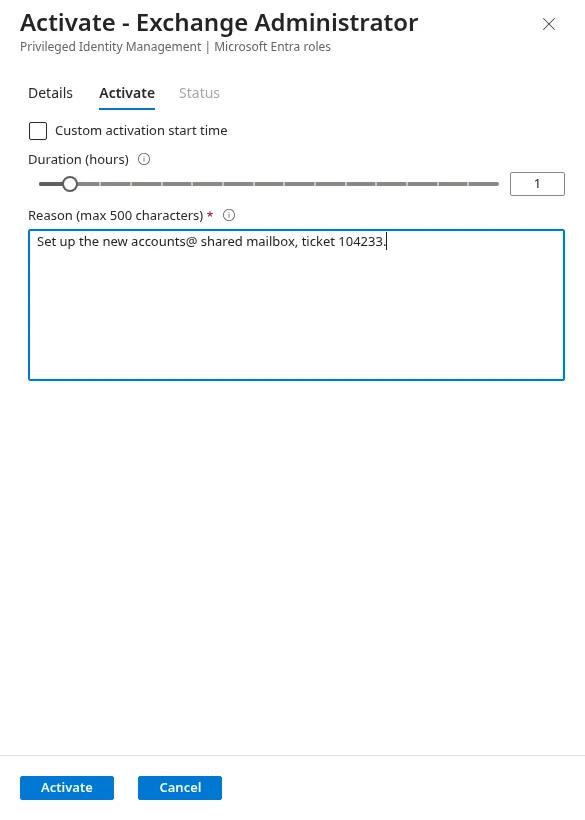
Here our lab admin account, eligible for Exchange Administrator, switches it on for an hour.
- Go to Privileged Identity Management, My roles. The Eligible assignments tab lists what you can switch on, and until when.
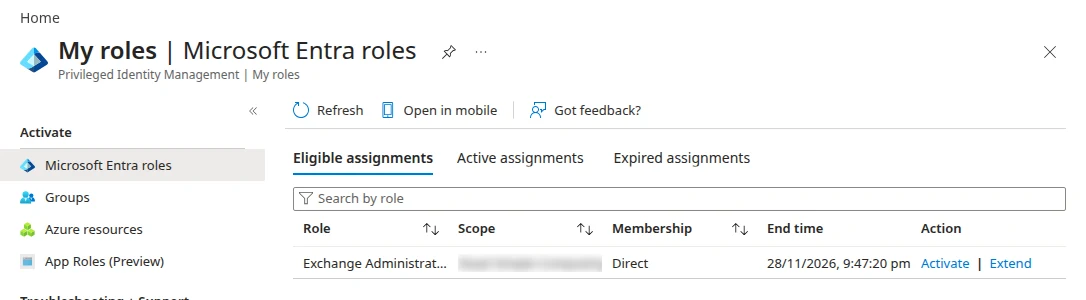
- Choose Activate, set how many hours you need, and give a reason. A ticket number makes the audit log far more useful later.
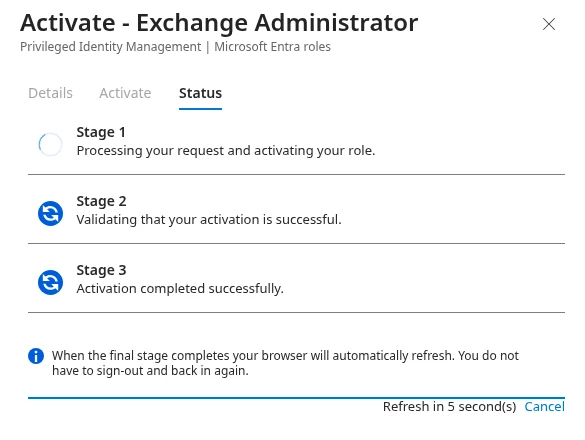
- Choose Activate. PIM works through three stages and refreshes the page by itself. You do not need to sign out.
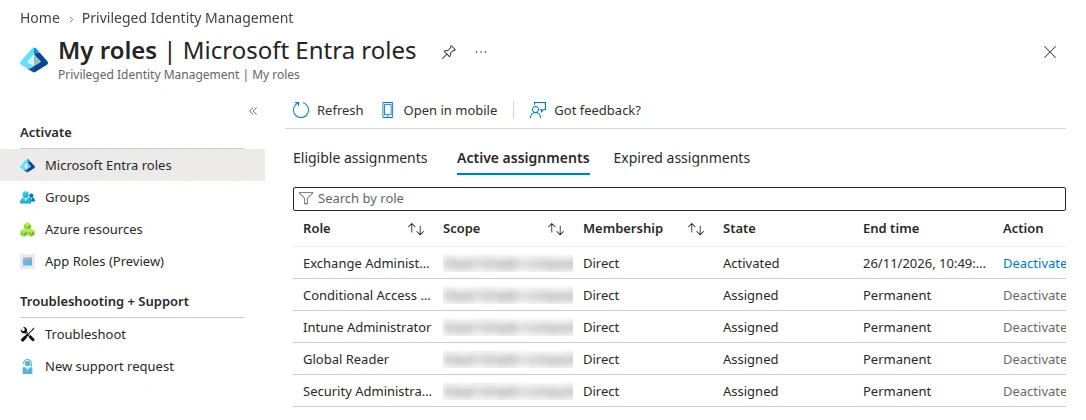
- The Active assignments tab now shows the role as Activated, with an end time. Compare it with the roles below it, which are Assigned and Permanent: those are the ones to move to eligible.
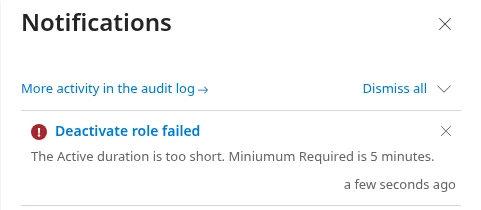
When you finish early, choose Deactivate. Microsoft refuses if the role has been active for less than five minutes.
Step 4: alerts and insights
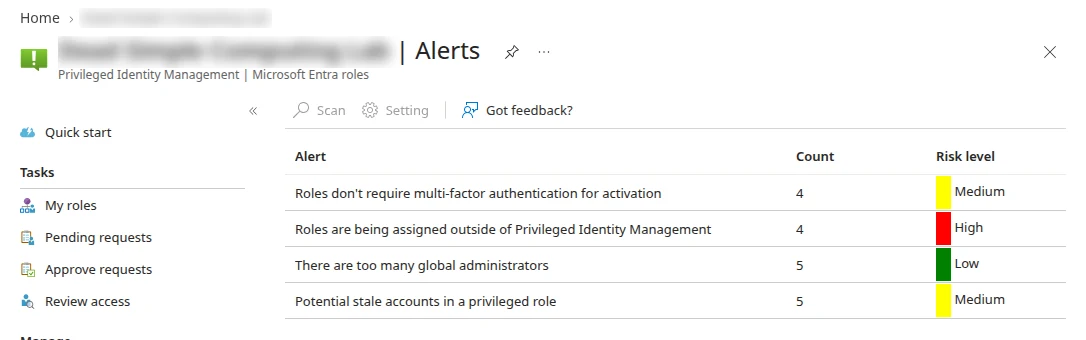
Alerts lists the problems PIM finds. Our lab, which is only partly moved to PIM, shows four of the most common:
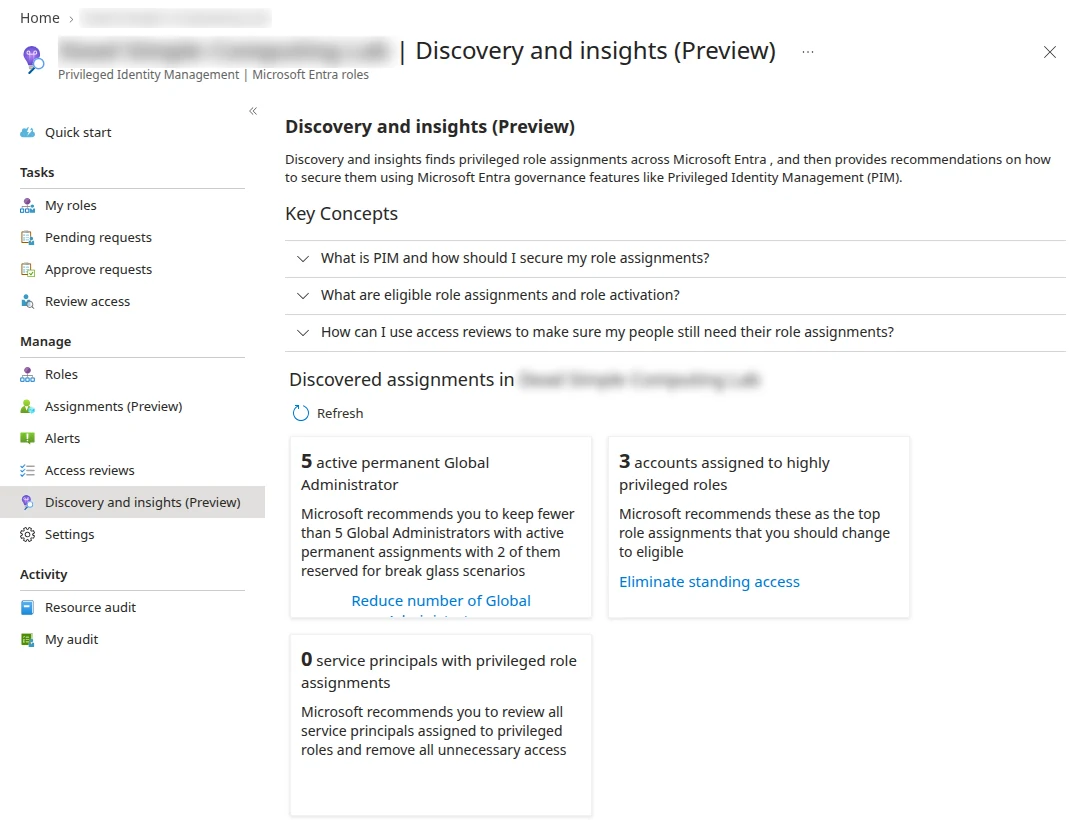
Discovery and insights counts the standing access you still have to remove, starting with permanent Global Administrators. Microsoft's guidance is fewer than five, two of them break-glass accounts.
Check it worked
Resource audit records every activation, deactivation and assignment change, with the reason given.
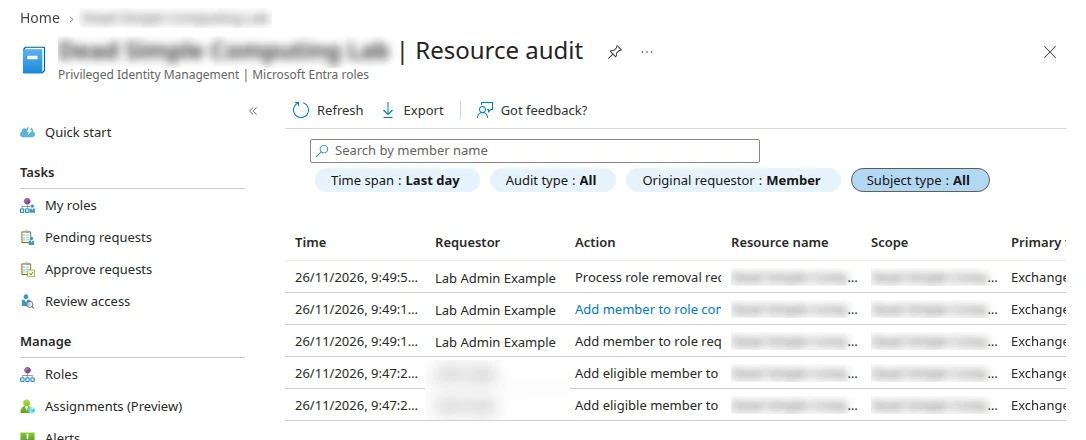
Over time, Active assignments under each role should show only break-glass accounts as permanent, and the alerts list should be empty.
Common mistakes
- Putting break-glass accounts into PIM. If MFA or PIM itself is the problem, an eligible break-glass account cannot help. Keep them permanent, excluded from Conditional Access, with FIDO2 keys, and alert on every sign-in.
- One approver. If they are on holiday, nobody can become Global Administrator. Name at least two.
- Forgetting other routes to admin rights. Groups that hold roles, app registrations with high permissions, and partner (GDAP) access all need the same scrutiny.
- Assigning roles outside PIM. Roles given by script or from another admin centre can skip PIM's rules. PIM raises the alert Roles are being assigned outside of Privileged Identity Management when it finds one.
Common questions
Is PIM included in Microsoft 365 Business Premium?
No. Business Premium includes Microsoft Entra ID P1. PIM needs Entra ID P2 or Entra ID Governance for the people who use it, which you can add to Business Premium for your admins and the people who approve or review their access.
Do admins have to sign out after activating a role?
No. The admin centre refreshes itself when activation finishes. Some PowerShell sessions and other admin tools need reconnecting before they see the new role.
What is the difference between eligible and active?
Eligible means the person can switch the role on when they need it. Active means they have it now, either for a set number of hours after activating, or permanently. The aim is for nobody except break-glass accounts to be permanently active.